

Query
Query in the left navigation opens an editor for BNQL, the read-only query language for your collected events. Use it when you know exactly what you want and prefer to write the query yourself, or to work on a query before you paste it into a dashboard widget.
The editor is available to team members of any role on plans that include API and query access.
Running a query
Type a query into the editor and press Run, or use ⌘↵ on macOS and Ctrl+↵ on other systems. The page opens with a starter query so you can see what a query looks like straight away.
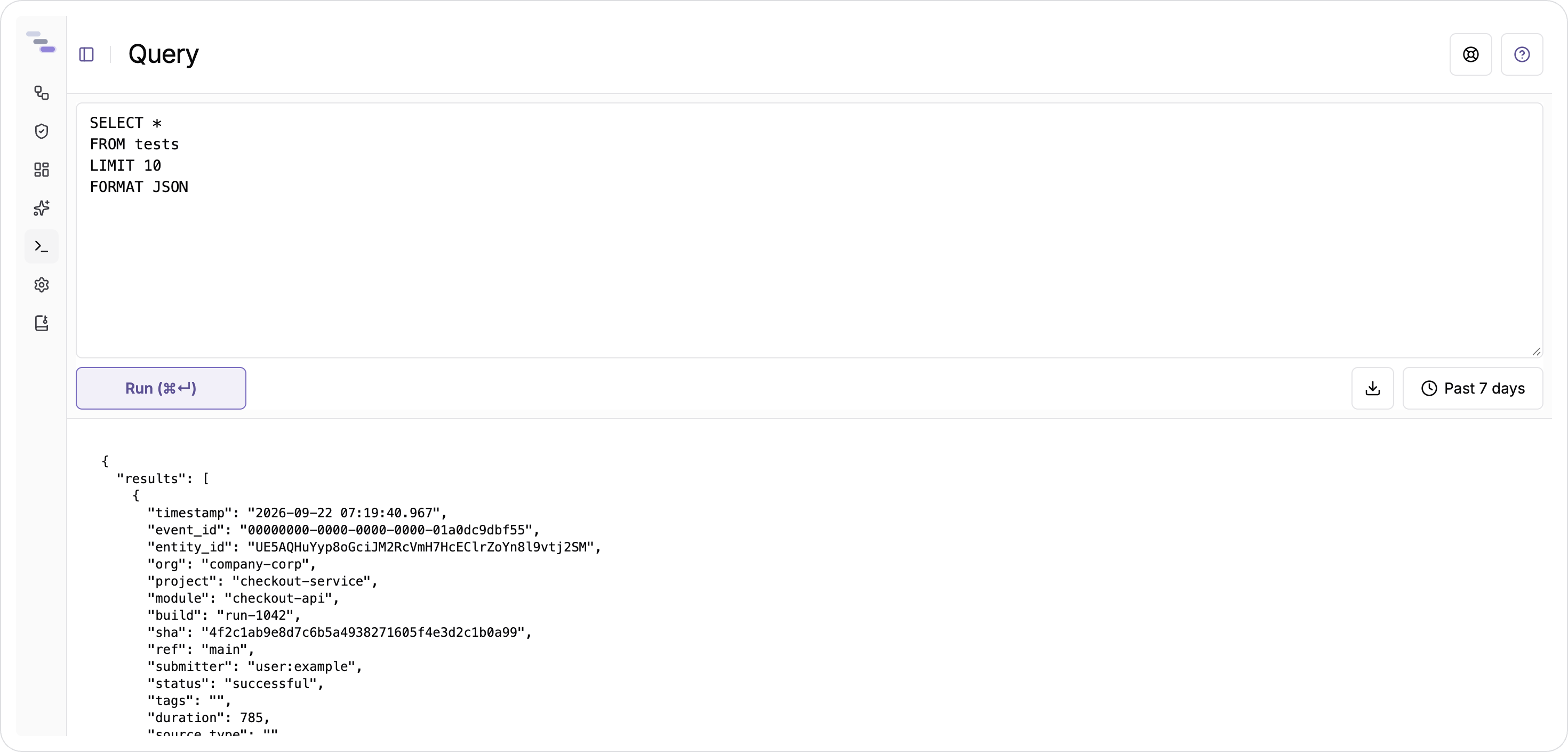
The time-range control in the header sets the default window, so a query without its own time bounds reads the selected period. Time bounds written into the query take priority. Use them when a query should always cover a fixed period, whatever the time-range control says.
Results
Results appear below the editor. The first 500 lines are shown as a preview, with a note if there are more. The download button next to the time range saves the complete result set. The file name and type follow the output format in your query: JSON, JSONL, CSV, TSV, Markdown or the plain-text pretty format.
If a query has an error, the message from the query engine is shown in place, so you can quickly fix a wrong field name or a clause in the wrong order.
Writing BNQL
The BNQL reference documents the full language. It covers the clause order, the tables you can read (builds, commits, deployments, files, guardrails, modules, orgs, projects, properties, pull requests, refs, tags and tests), the fields in each table, aggregates and percentiles, conditional aggregates and the formatting functions.
A query always starts with SELECT and a table, and the clauses that follow must appear in a fixed order. This query finds the suites that fail most often on the main branch:
SELECT
  suite,
  COUNT(*)                 AS runs,
  COUNTIF(status='failed')  AS failures
FROM tests
WHERE type='test-case' AND ref='main'
GROUP BY suite
ORDER BY failures DESC
LIMIT 10Two other tools can help. The AI Insights assistant writes and validates BNQL for you, and each reply ends with the query it used, which you can copy here as a starting point. You can also run BNQL outside the app through the Data API, so you can script, schedule or export a query you develop here.