

OpenAI Integration
Buildnote's AI features use a model provider that you own. Connect OpenAI with an API key from your own OpenAI account, and every AI request your team makes, such as a failure summary or a question in AI Insights, is answered by the model you pick, using your key.
See AI Insights for what those two features do once a provider is connected.
Before You Start
Your team needs a Pro or Enterprise plan. You also need the Admin or Billing Manager role, because only those roles can install and configure integrations.
Then turn on the AI features. Under Settings > General > Event Collection, enable AI Insights ("Use AI to gain better insights (e.g. summarise failures or detect flaky tests)"). If you connect a provider without turning on that switch, Buildnote stores the credentials but the features stay off.
IMPORTANT
A team holds one OpenAI integration at a time. You can connect Anthropic or Gemini alongside it, but only one connected provider answers AI requests, and you can't choose which one. When you switch providers, disconnect the old one instead of leaving both connected.
Step 1. Create An OpenAI API Key
Sign in to the OpenAI platform and create a secret key under API keys. Project keys begin with sk-proj-. The value is shown only once, so copy it before you close the dialog.
The project the key belongs to must have credit. OpenAI bills the token usage on that key directly to your OpenAI account.
Step 2. Connect The OpenAI Integration
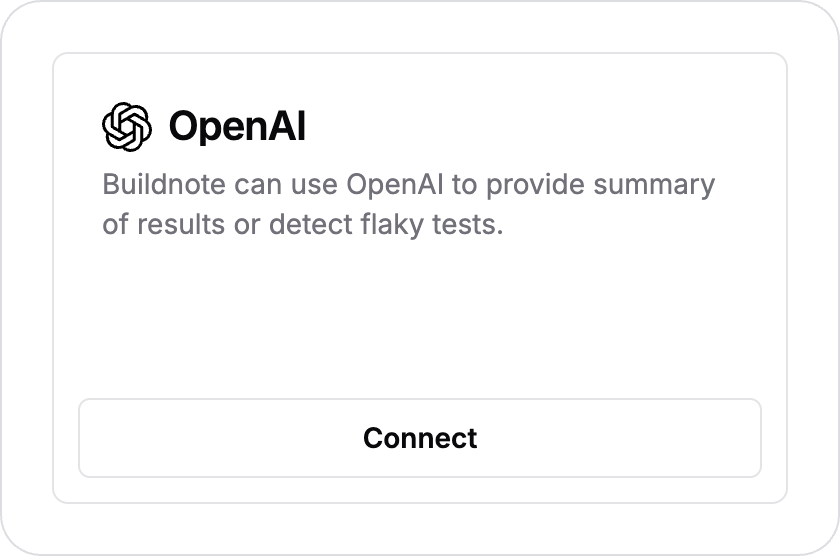
In Buildnote navigate to Settings > Integrations, find OpenAI under Available and select Connect.
Step 3. Enter The Integration Details
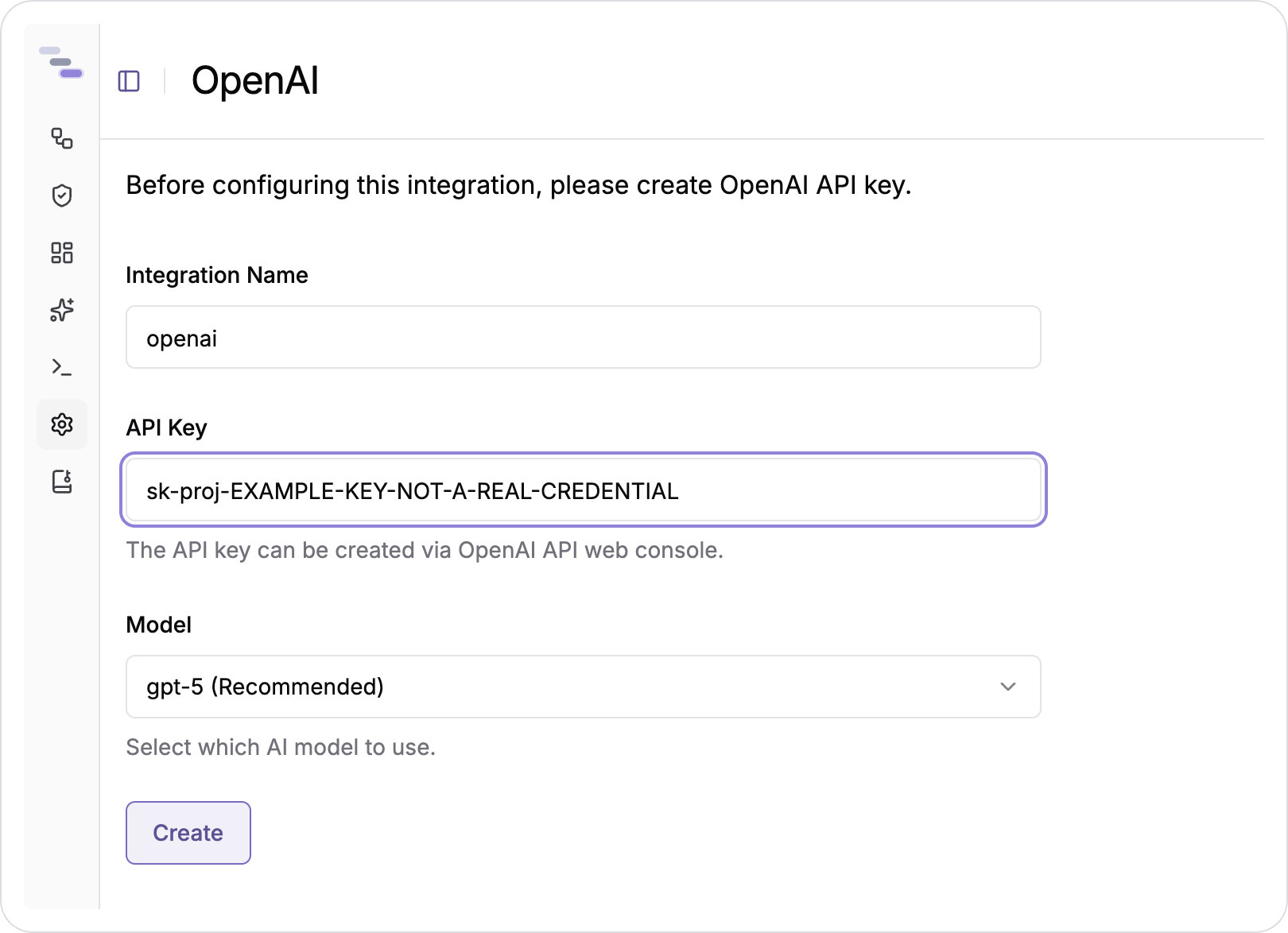
Give the integration a name you'll recognise in the integrations list, paste the API key, and choose a model.
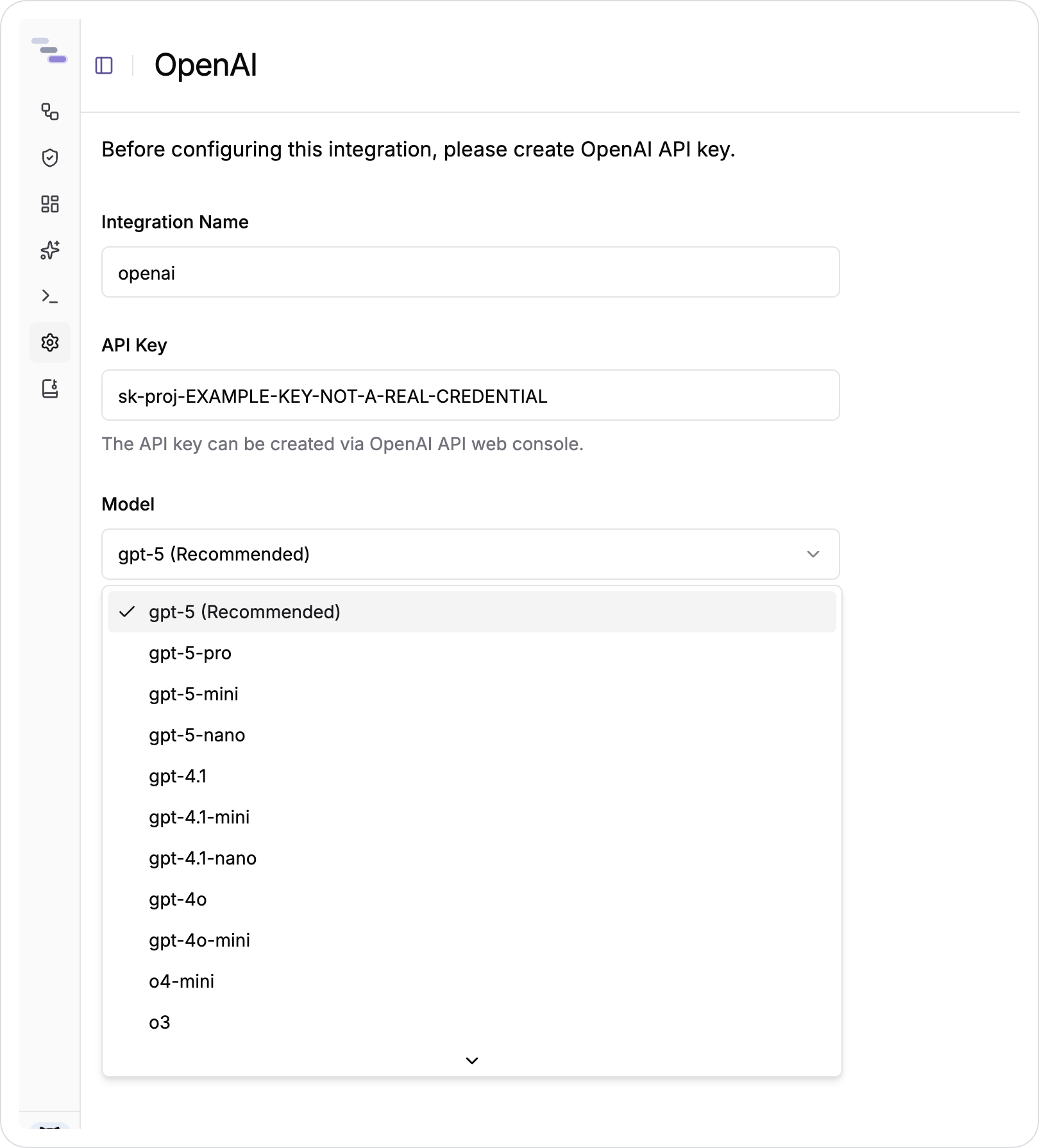
The model dropdown lists the supported OpenAI models, with the recommended one already selected. The mini and nano variants cost less per request, while the reasoning models handle harder questions.
Select Create. Buildnote stores the key encrypted and uses it only for your team's requests.
Step 4. Integration Connected
The integration now appears in the Connected section under the name you gave it.
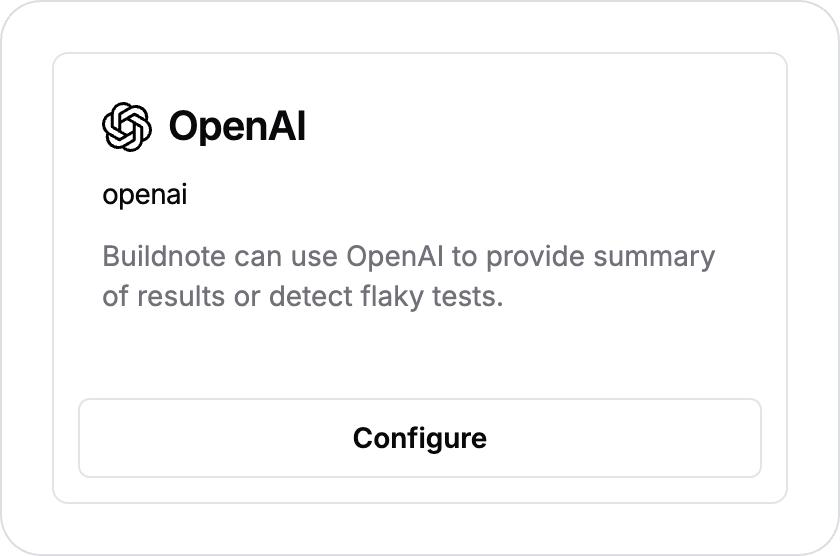
From now on, failure summaries appear on failed events as they arrive, and AI Insights is ready to answer questions.
Step 5. Change The Name Or Model
Select Configure on the connected integration, then Edit next to the field you want to change. A new name or model saves straight away and applies from the next request. You don't need to change anything else in the app.
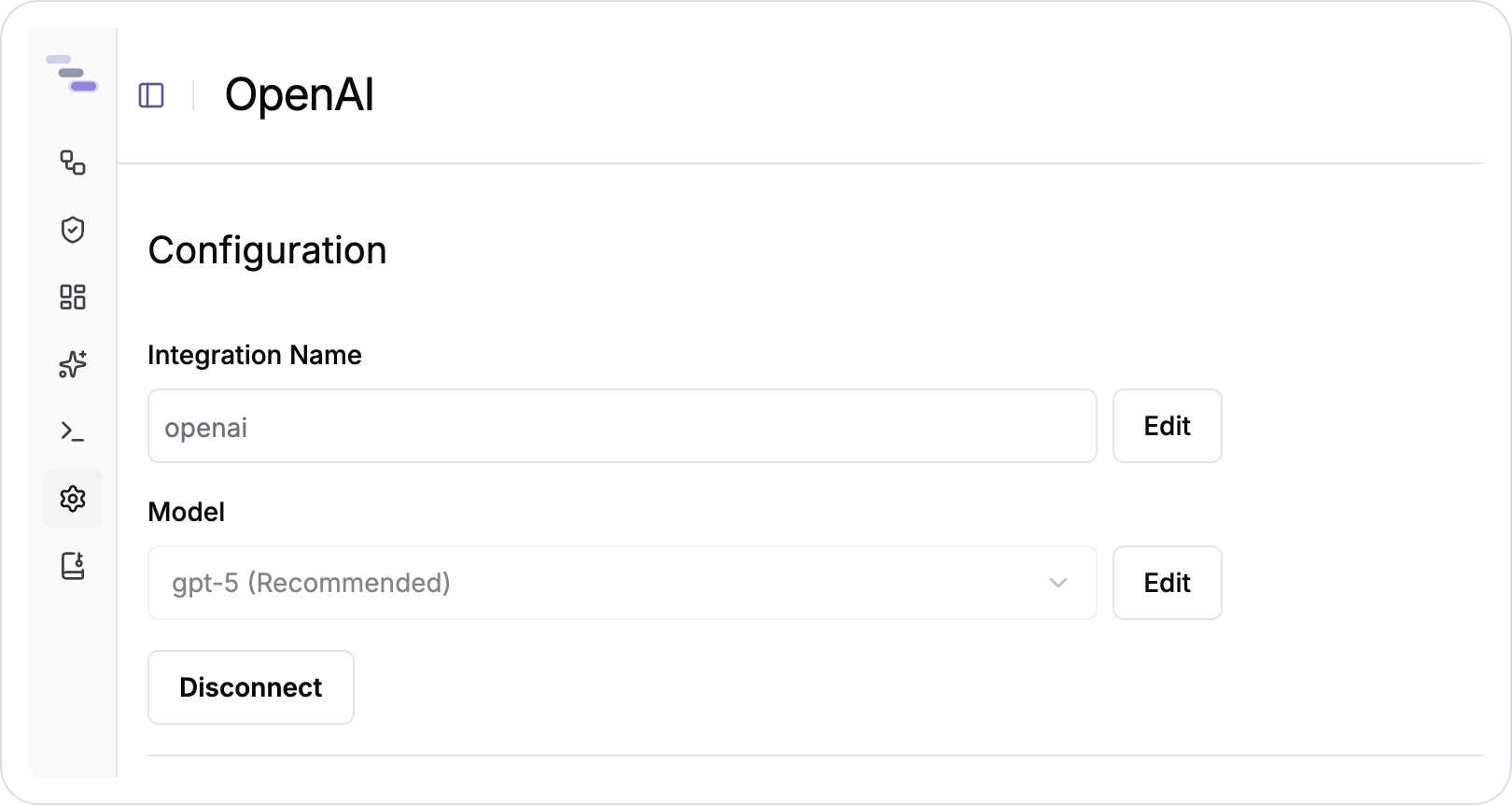
The same page has a Disconnect button, which removes the integration and the stored key. To rotate a key, disconnect and then connect again with the new value.
Costs
AI requests are billed on top of your plan, and every AI Insights reply shows what it cost. You can find pricing for each plan on the pricing page. OpenAI charges the token usage on your key separately.