

SAML SSO Integration
On paid plans, you can connect your organization's SSO provider to Buildnote through SAML. Your users then sign up and sign in with the provider they already use.
Configure SAML SSO
Step 1. Connect SAML SSO Integration
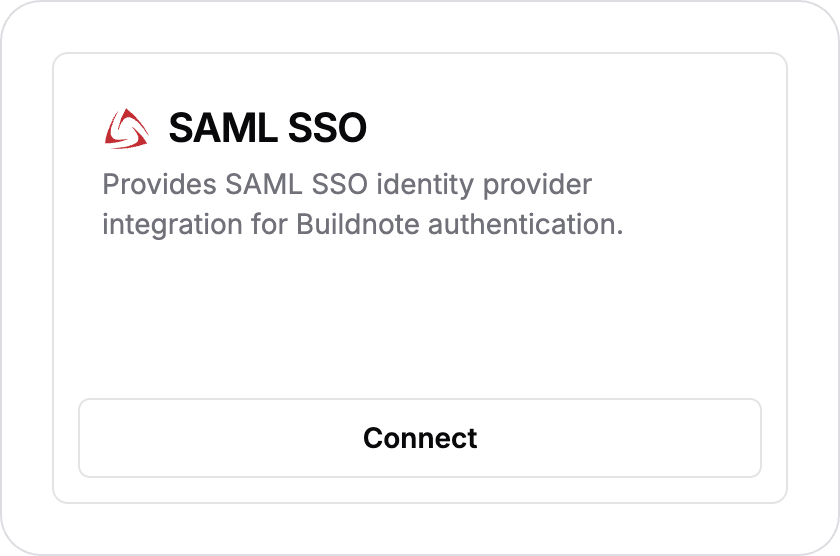
In Buildnote, go to Settings > Integrations and select Connect on SAML SSO.
Step 2. Enter IDP details
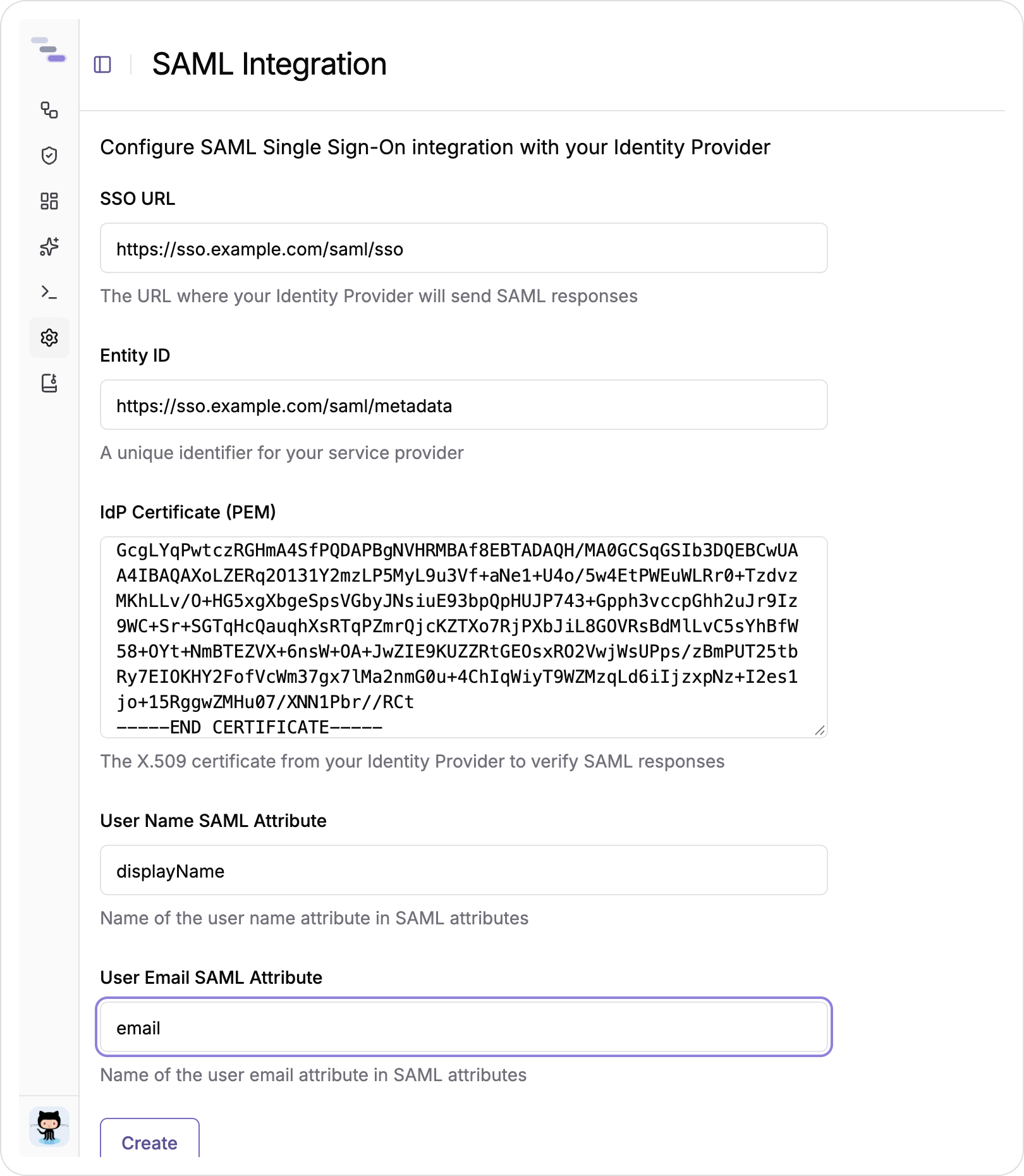
Enter the Identity Provider (IDP) configuration details for your SSO provider and select Create.
Step 3. Certificate Created
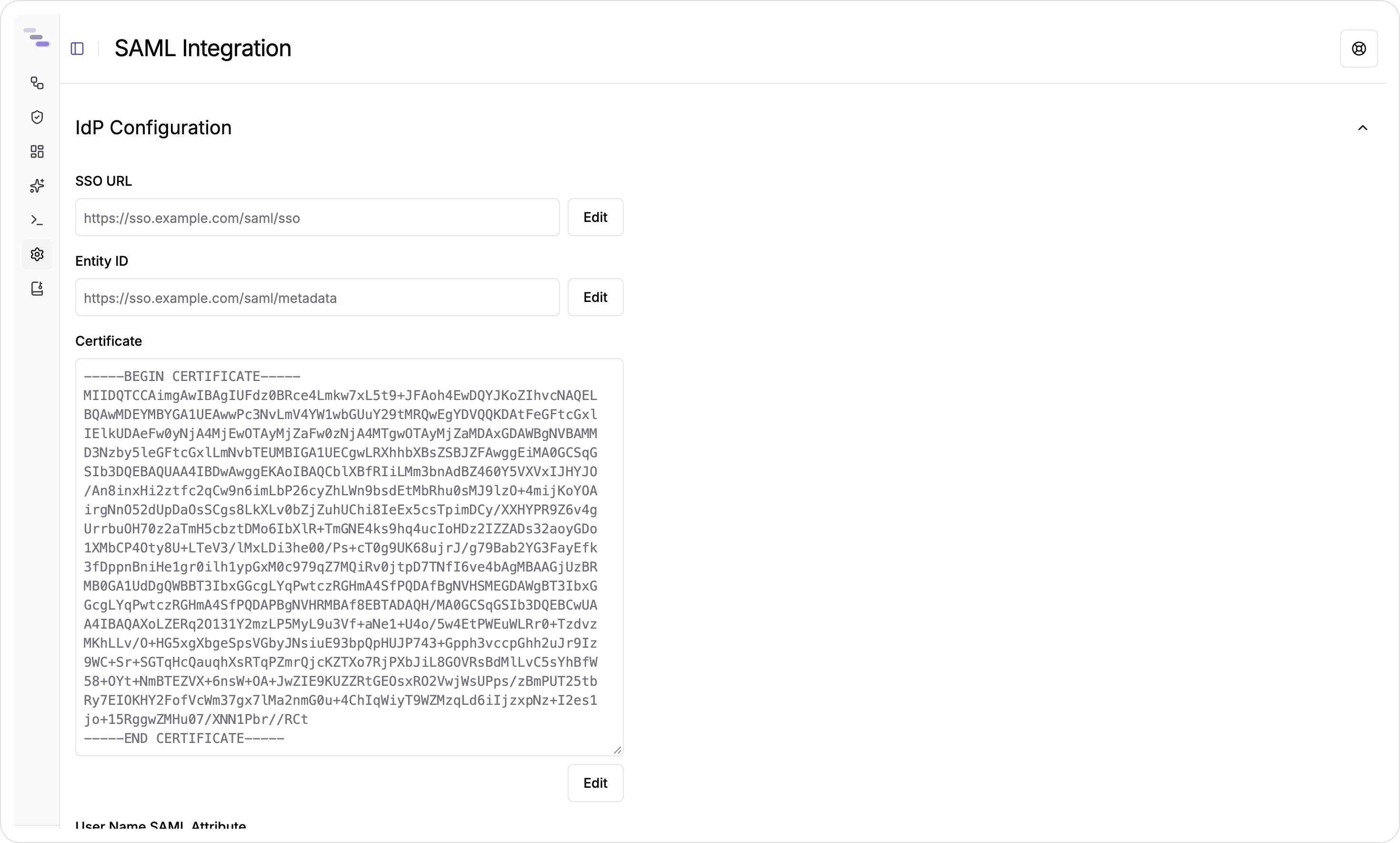
Buildnote generates an authentication request certificate for your SAML configuration. Save this certificate, because your provider may ask for it during setup.
You can also find the certificate later on the integration's configuration page.

Step 4. Integration Connected
The SAML SSO integration is now active and ready to authenticate users.
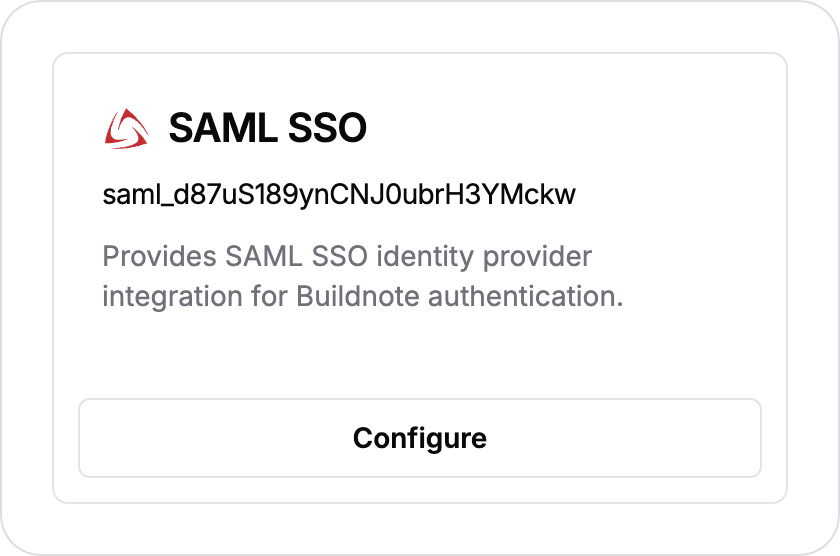
Select Configure to see more details and configuration options.
User Sign-Up
Each user signs up once before they can sign in through SAML SSO.
Step 1. Navigate To Sign Up
Open the Buildnote Sign Up page and select Single Sign-On, or go straight to the Single Sign-On Sign Up page.

Step 2. Sign Up With Team Name
Enter your organization's team name and select Sign up.

Buildnote redirects you to your SSO provider to authenticate.
Step 3. Sign Up Successful
Your SSO provider shows its own sign-in screen. Once you authenticate there, you return to Buildnote signed in. Your account is created and listed under Settings > Users.
Your account is now active and set up for SAML SSO.
User Login
After signing up, users sign in on the Buildnote Login page by selecting Single Sign-On, or go straight to the Single Sign-On Login page. After they enter the team name, Buildnote sends them to your SSO provider, and back into Buildnote once they authenticate.