Discord Integration
Buildnote can send notifications about test failures, build failures and other events to Discord. You can connect through the Buildnote Discord App or through a webhook.
Discord App
To receive Discord notifications this way, you authorize the Buildnote Discord App.
Step 1. Connect Discord App Integration
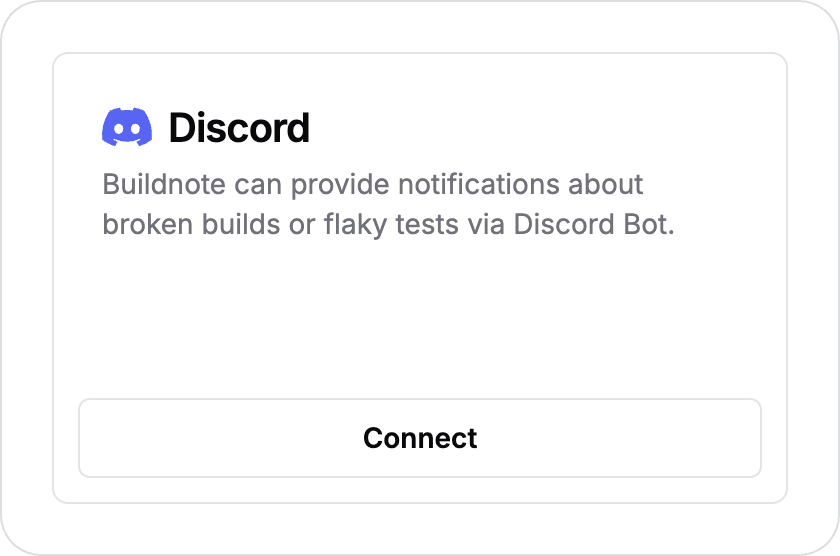
In Buildnote, go to Settings > Integrations and select Discord.
Step 2. Authorize App
Click Connect. Buildnote redirects you to Discord, where you log in and authorize the Buildnote Discord application. Discord asks which server the app can join and then shows the permissions it requests. Confirm both and press Authorise.
Step 3. Integration Connected
Once authorization succeeds, Discord sends you back to Buildnote, and the Discord card appears in the Connected section of the integrations page.
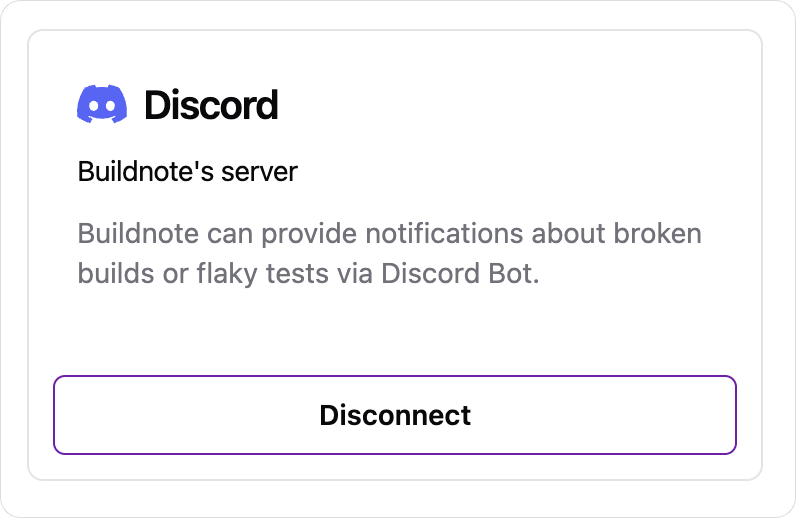
Your Discord App integration is now set up and ready to send notifications.
Discord Webhook
Use a webhook if you don't have permission to authorize apps in your organization but can configure webhooks on an existing Discord channel.
Step 1. Create Webhook
In Discord, open the channel's settings using the gear icon next to the channel name.
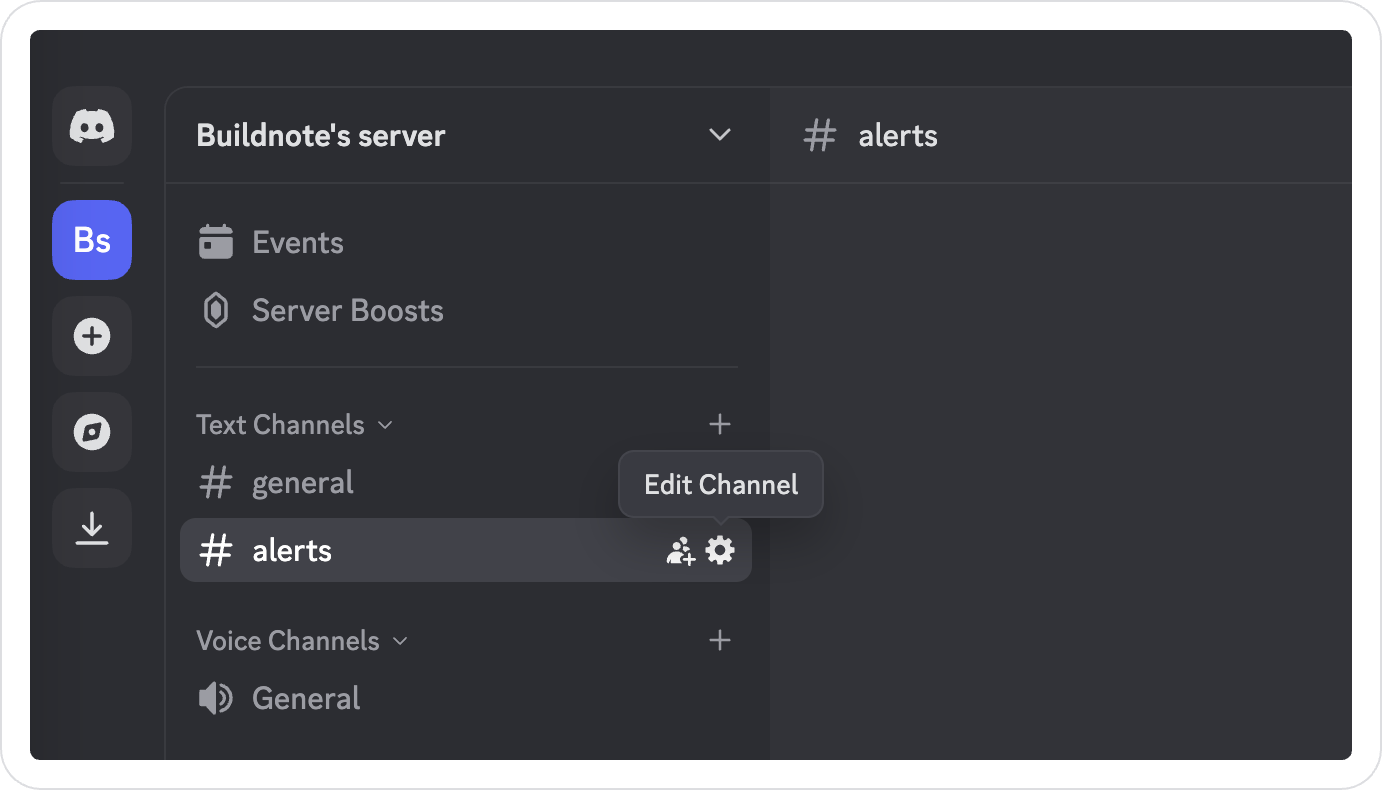
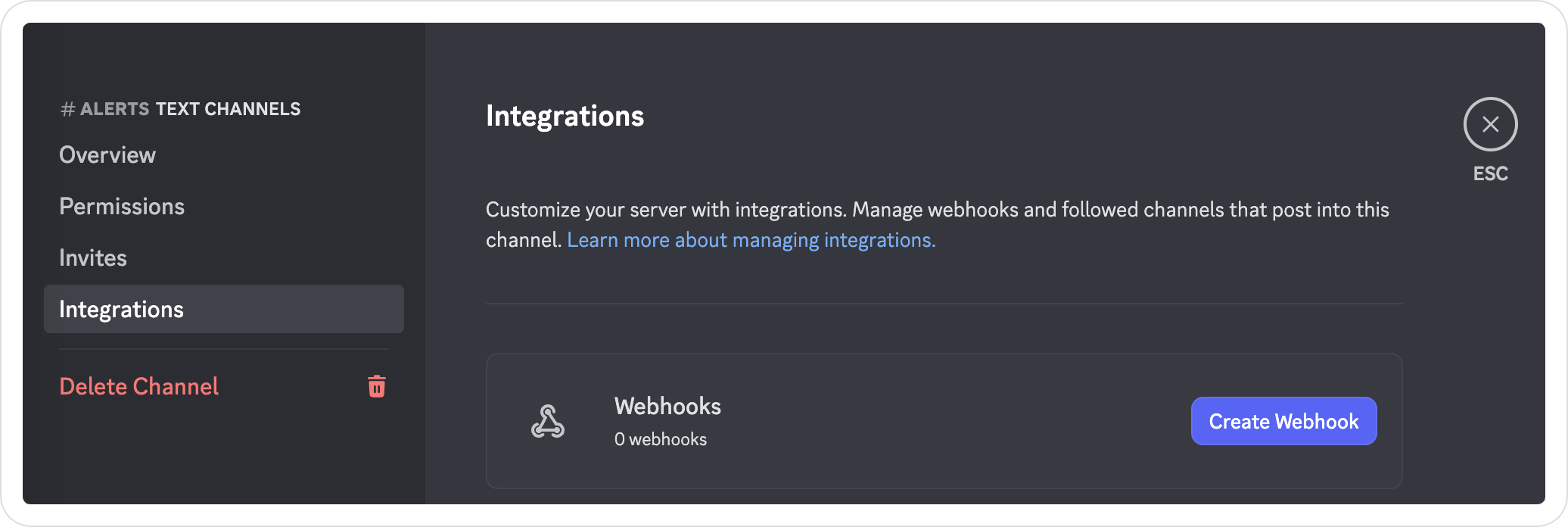
In the channel settings, go to Integrations > Webhooks and press Create Webhook.
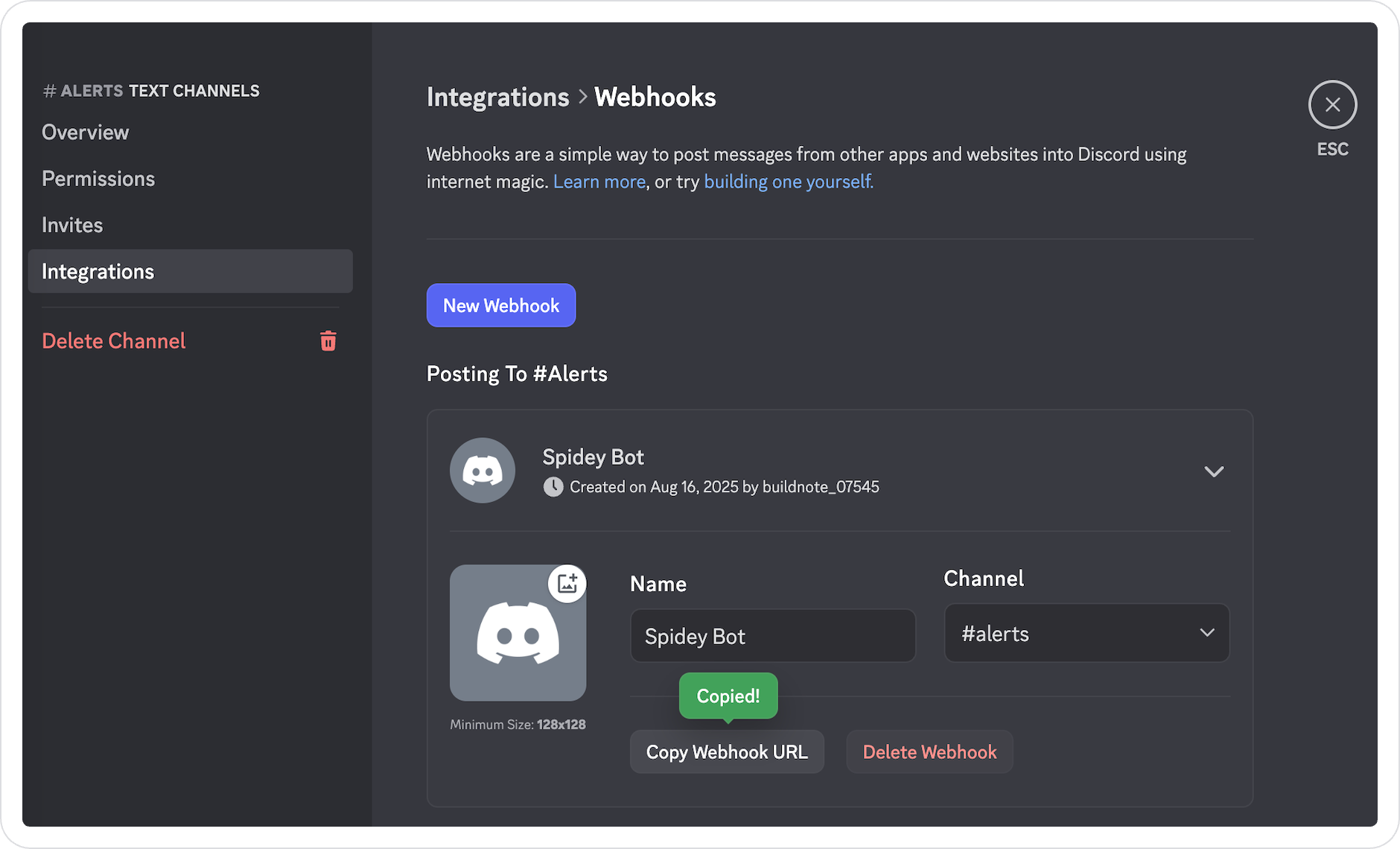
Discord creates the webhook straight away. Expand it and select Copy Webhook URL.
Step 2. Connect Discord Webhook Integration
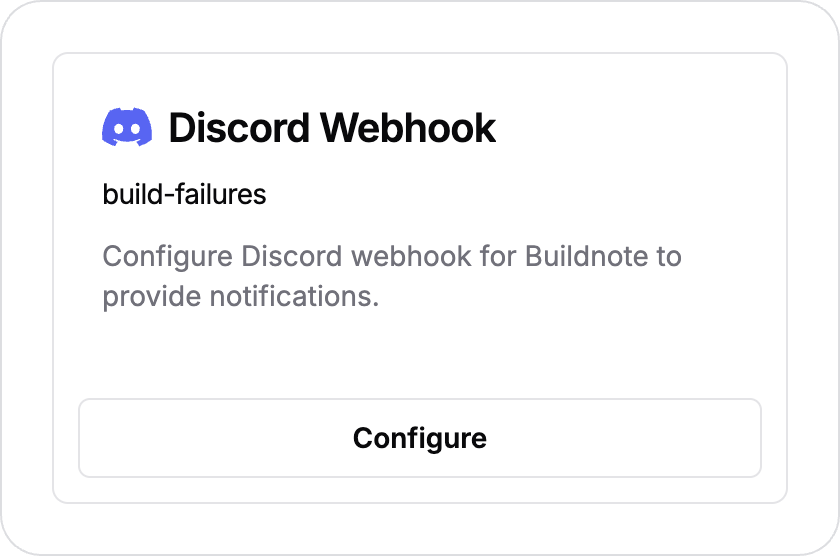
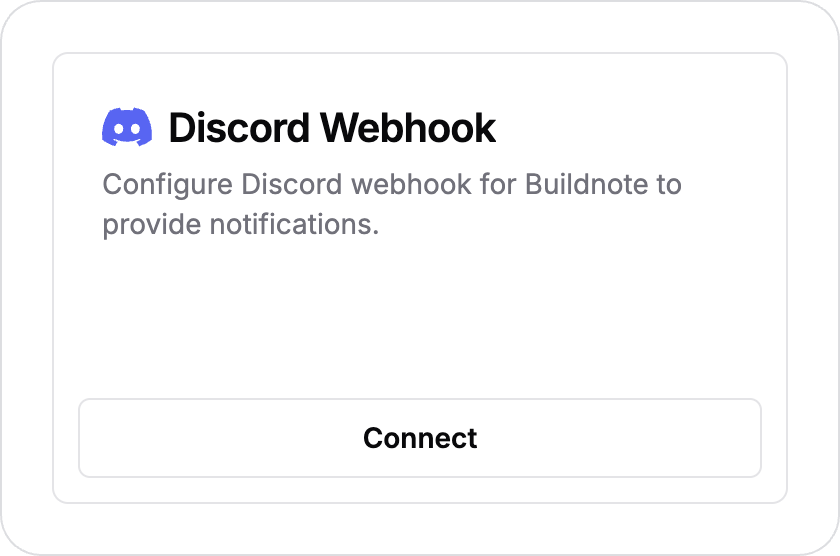
In Buildnote, go to Settings > Integrations and select Discord Webhook.
Step 3. Configure Integration
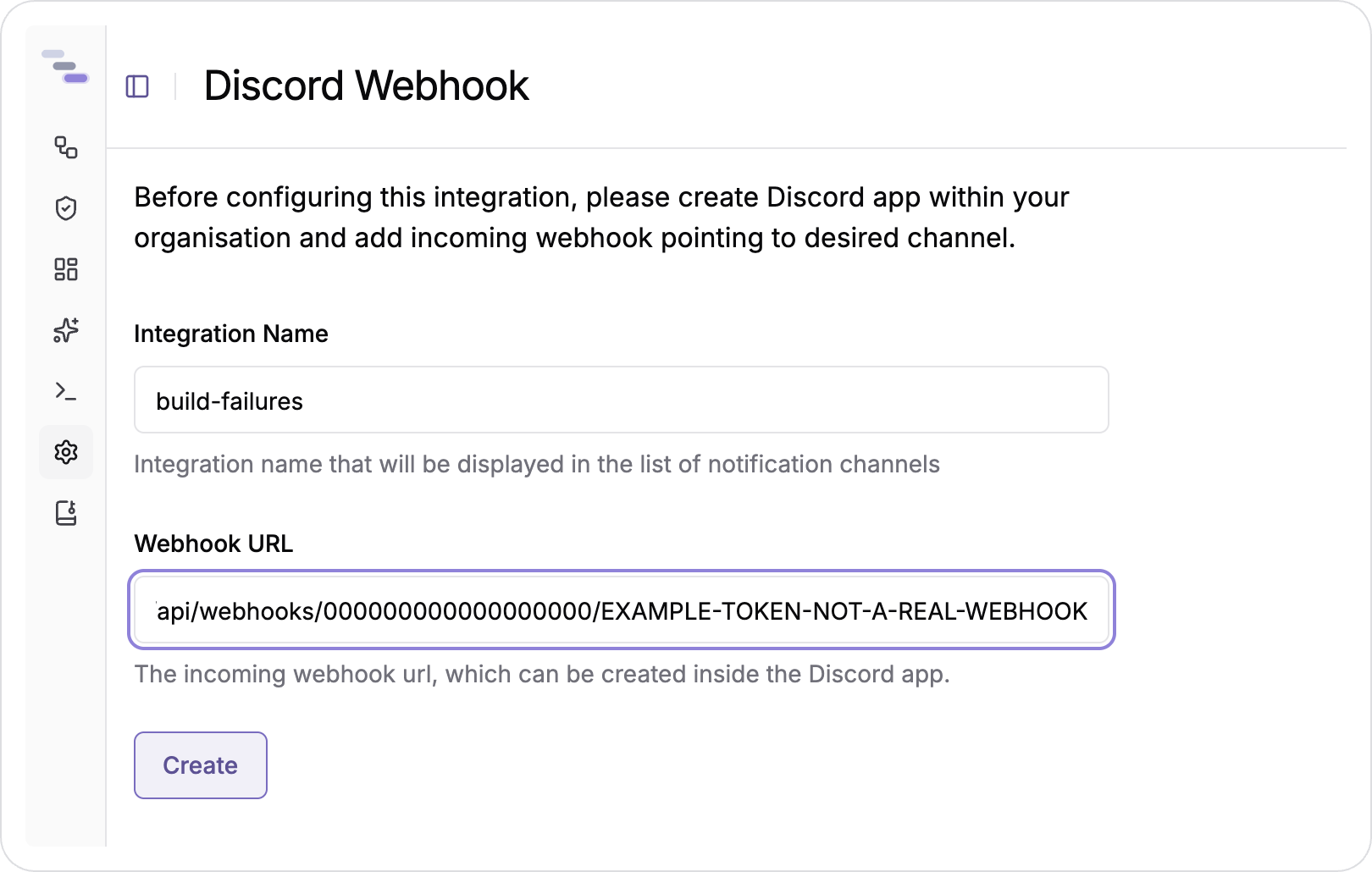
Enter your Discord webhook details in the Discord Webhook integration form.
Step 4. Integration Connected
The Discord Webhook integration is now active and sends notifications.