
Slack Integration
Buildnote can send notifications about test failures, build failures and other events to Slack. You can install the Buildnote Slack app directly, or configure a webhook on an existing Slack app in your organization.
Slack App
If your Slack user has the permissions to install apps, installing the app directly is the fastest way to connect.
Step 1. Connect Slack App Integration
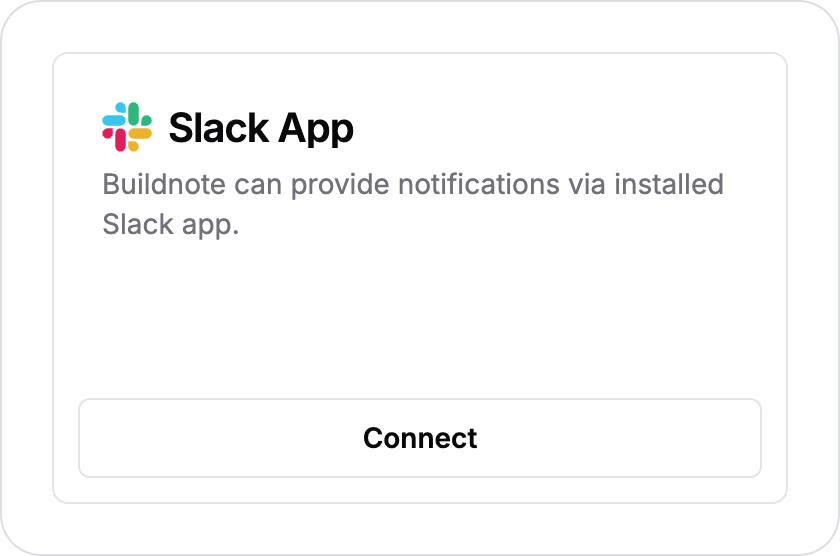
In Buildnote, go to Settings > Integrations and select Slack App.
Step 2. Authorize App
Click Connect. Buildnote redirects you to Slack, where you log in and authorize the Buildnote Slack application. Slack shows the permissions the app requests, the destination workspace in the top-right corner, and a picker for the channel that should receive notifications. Press Allow.
Step 3. Integration Connected
Once authorization succeeds, Slack sends you back to Buildnote, and the Slack App card appears in the Connected section of the integrations page.
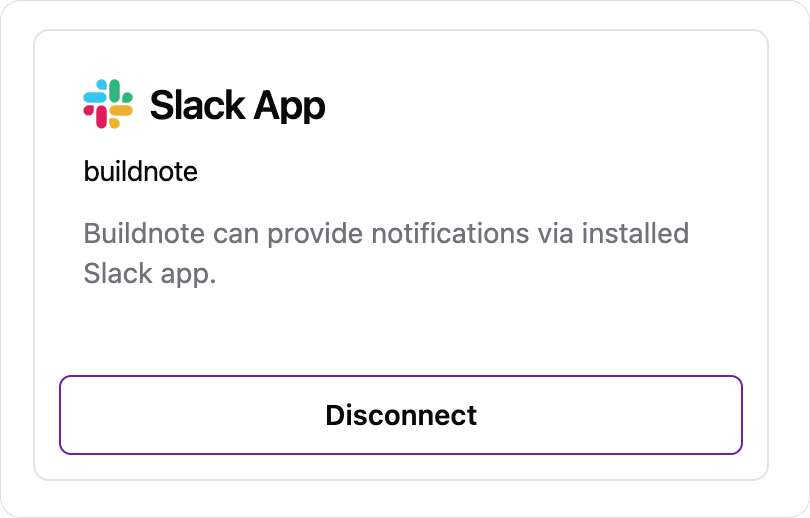
The Slack App integration is now set up and sends notifications.
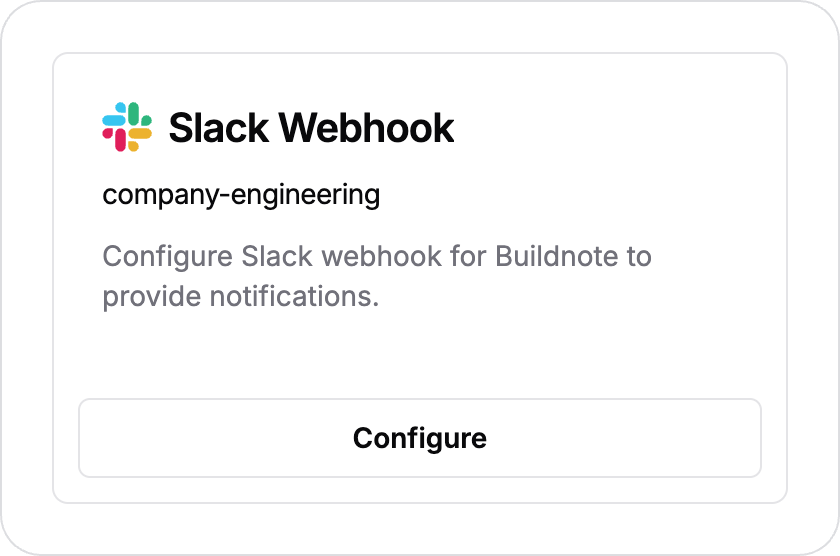
Slack Webhook
Use a webhook if you don't have permission to authorize apps in your organization but can configure webhooks on existing Slack apps.
Step 1. Create New Slack App
Create a new app at https://api.slack.com/apps.
Step 2. Create Webhook
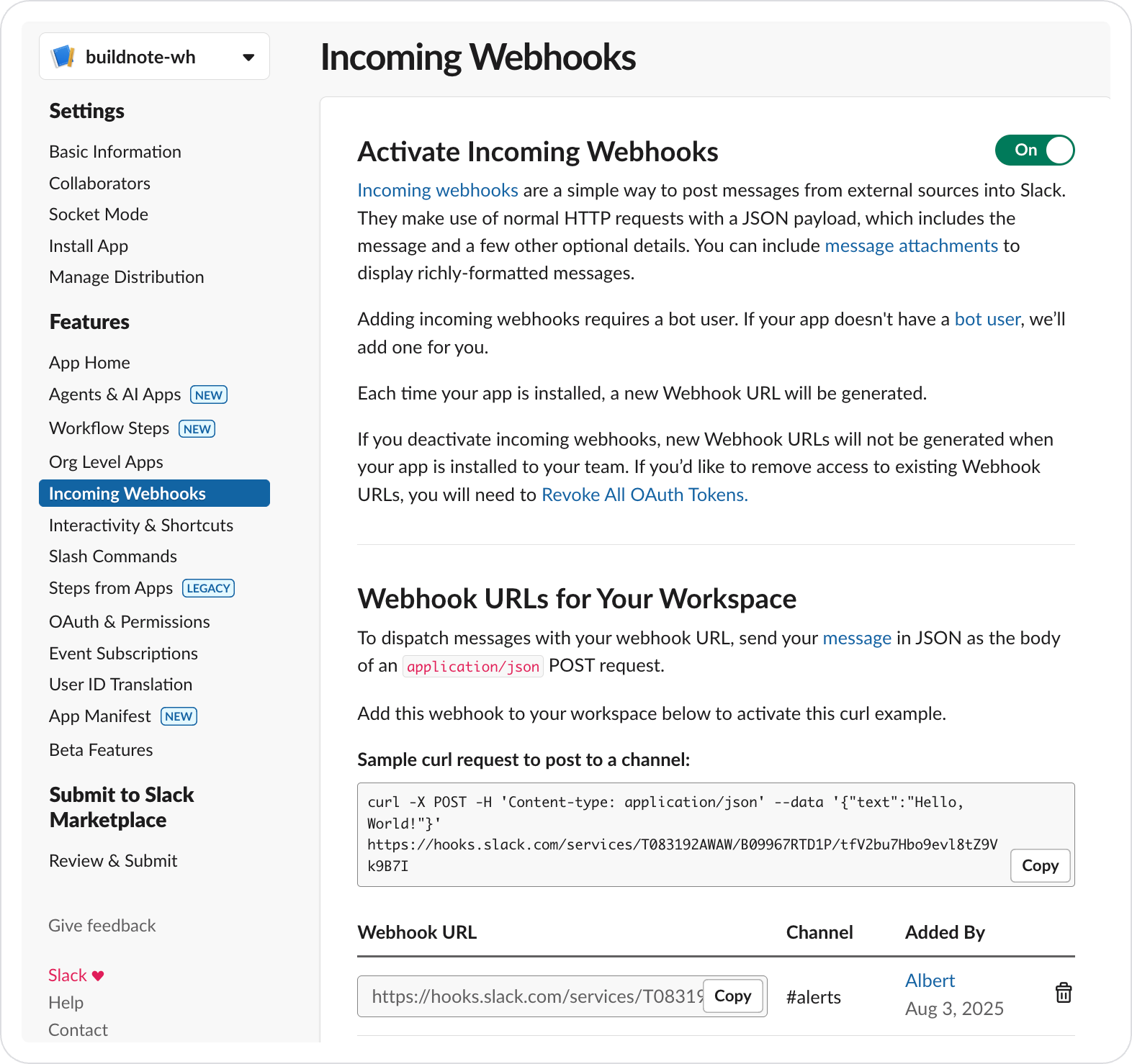
In your Slack app's settings, open Incoming Webhooks, switch on Activate Incoming Webhooks, and press Add New Webhook to Workspace.
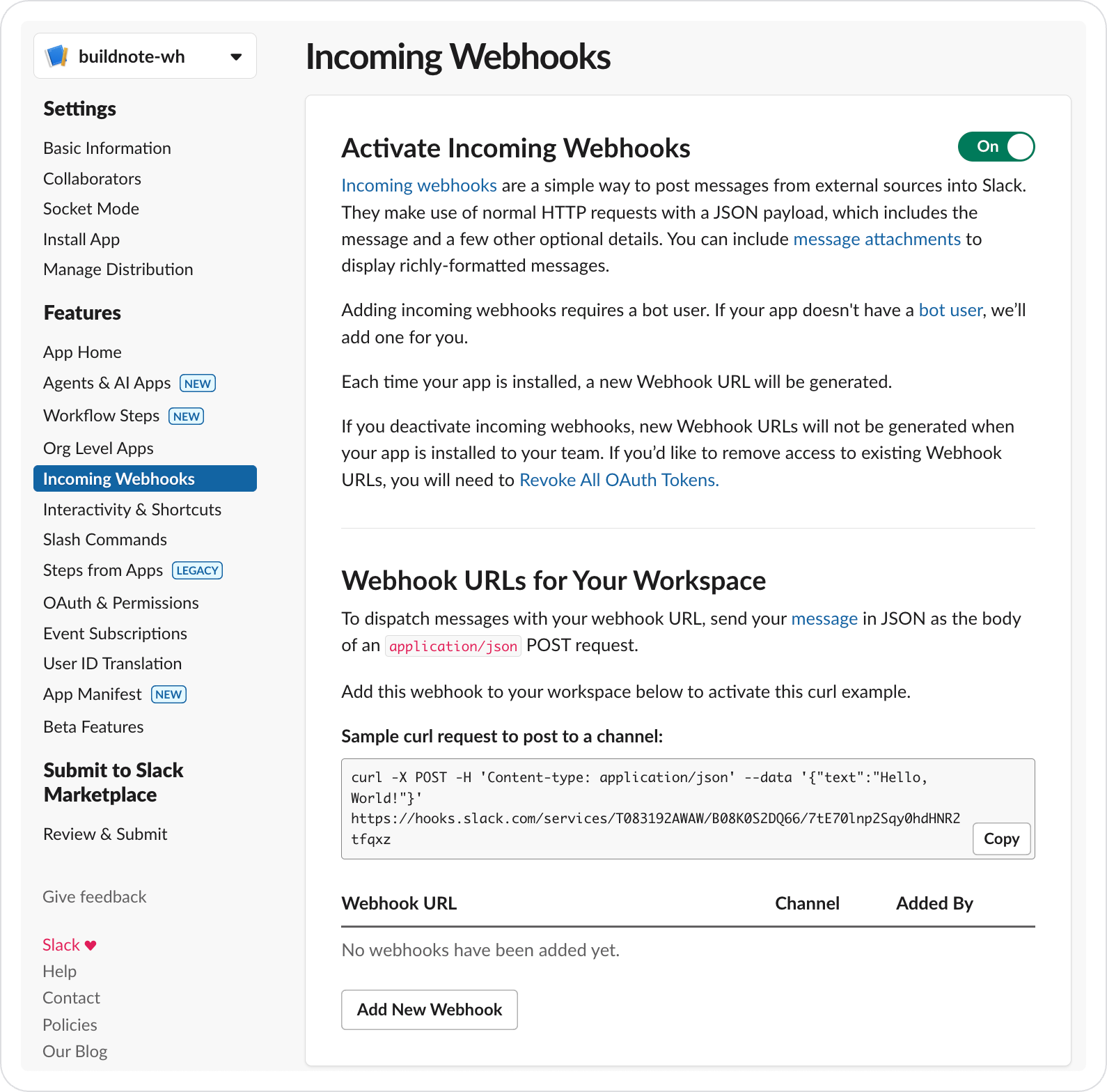
Slack asks which channel the webhook can post to. Pick the channel and press Allow.
The new webhook appears in the Webhook URLs for Your Workspace list. Copy its Webhook URL.
Step 3. Connect Slack Webhook Integration
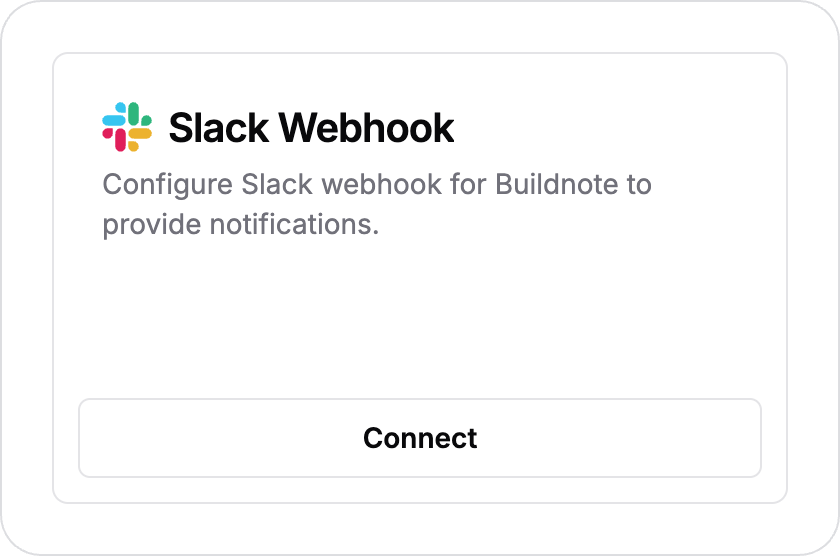
In Buildnote, go to Settings > Integrations and select Slack Webhook.
Step 4. Configure Integration
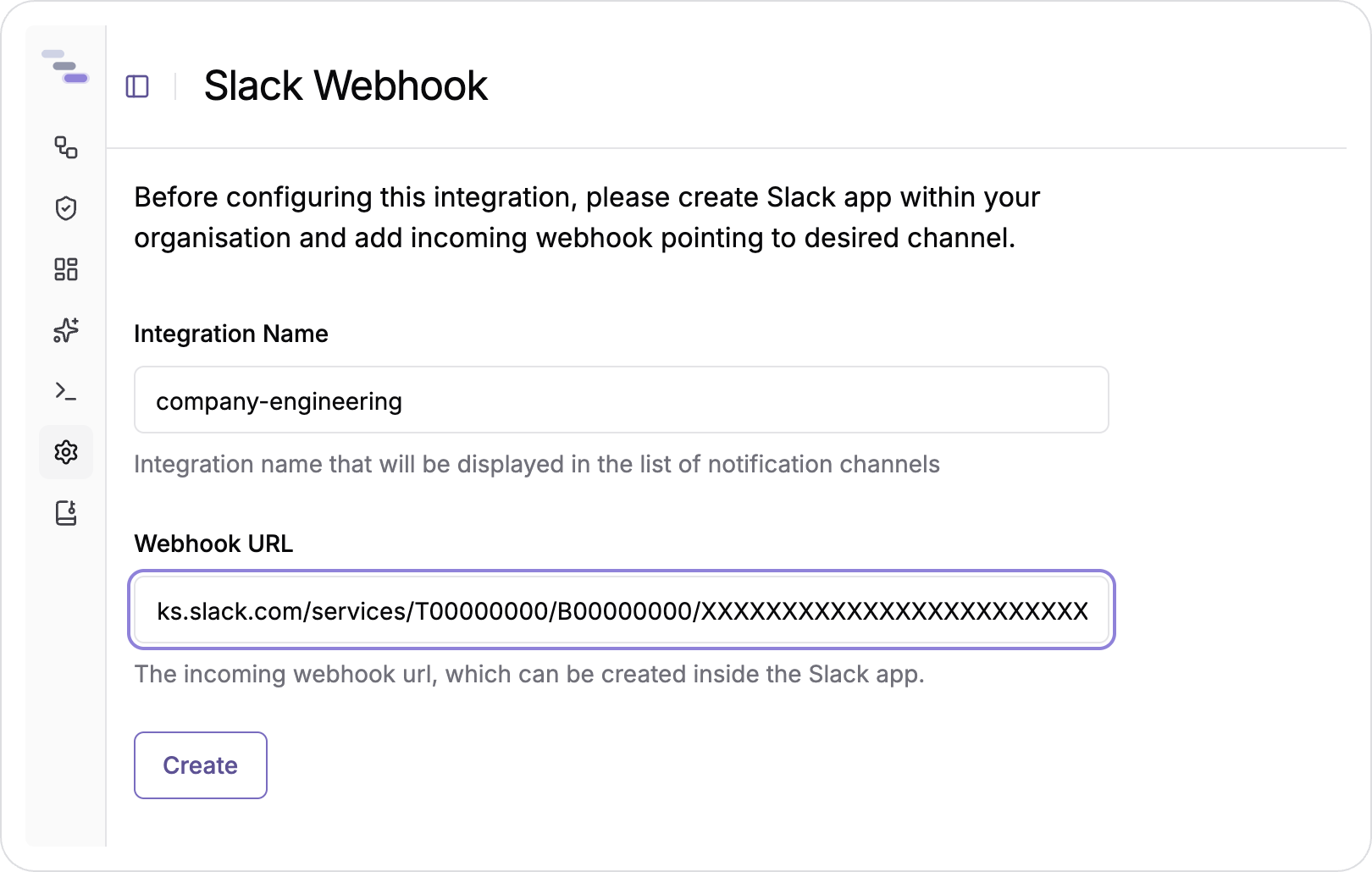
Enter your Slack webhook details in the Slack Webhook integration form.
Step 5. Integration Connected
The Slack Webhook integration is now active and sends notifications.