

GitHub Integration
Buildnote connects to GitHub in a few ways, so you can pick the one that fits your workflow and permissions. You can install a custom GitHub App or set up a webhook on a repository. You can also use the Buildnote GitHub Action, which wraps the Buildnote CLI to collect test results and files in your workflows.
GitHub App
If your GitHub user has the permissions to create apps, you can install a custom GitHub App. Once installed, the app sends pipeline events (workflow jobs, pushes) to Buildnote automatically.
To install the custom app, follow these steps:
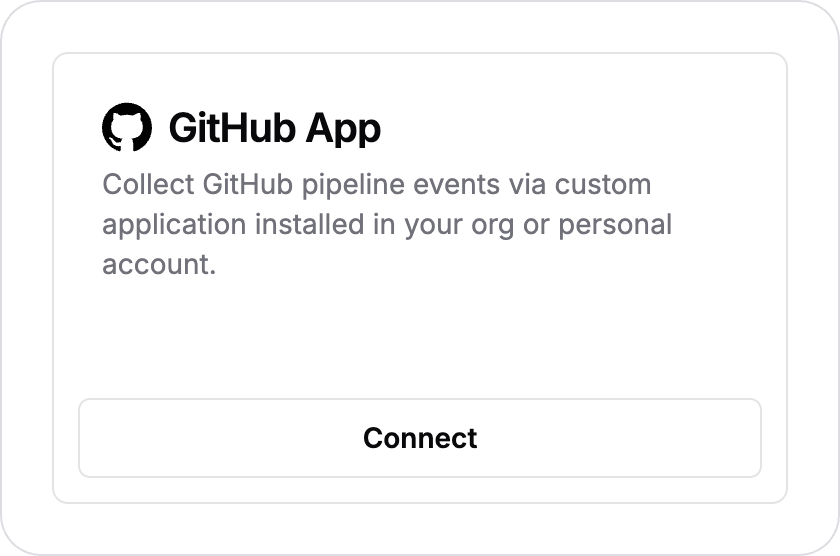
Step 1. Connect GitHub App Integration
In Buildnote, go to Settings > Integrations and connect GitHub App.
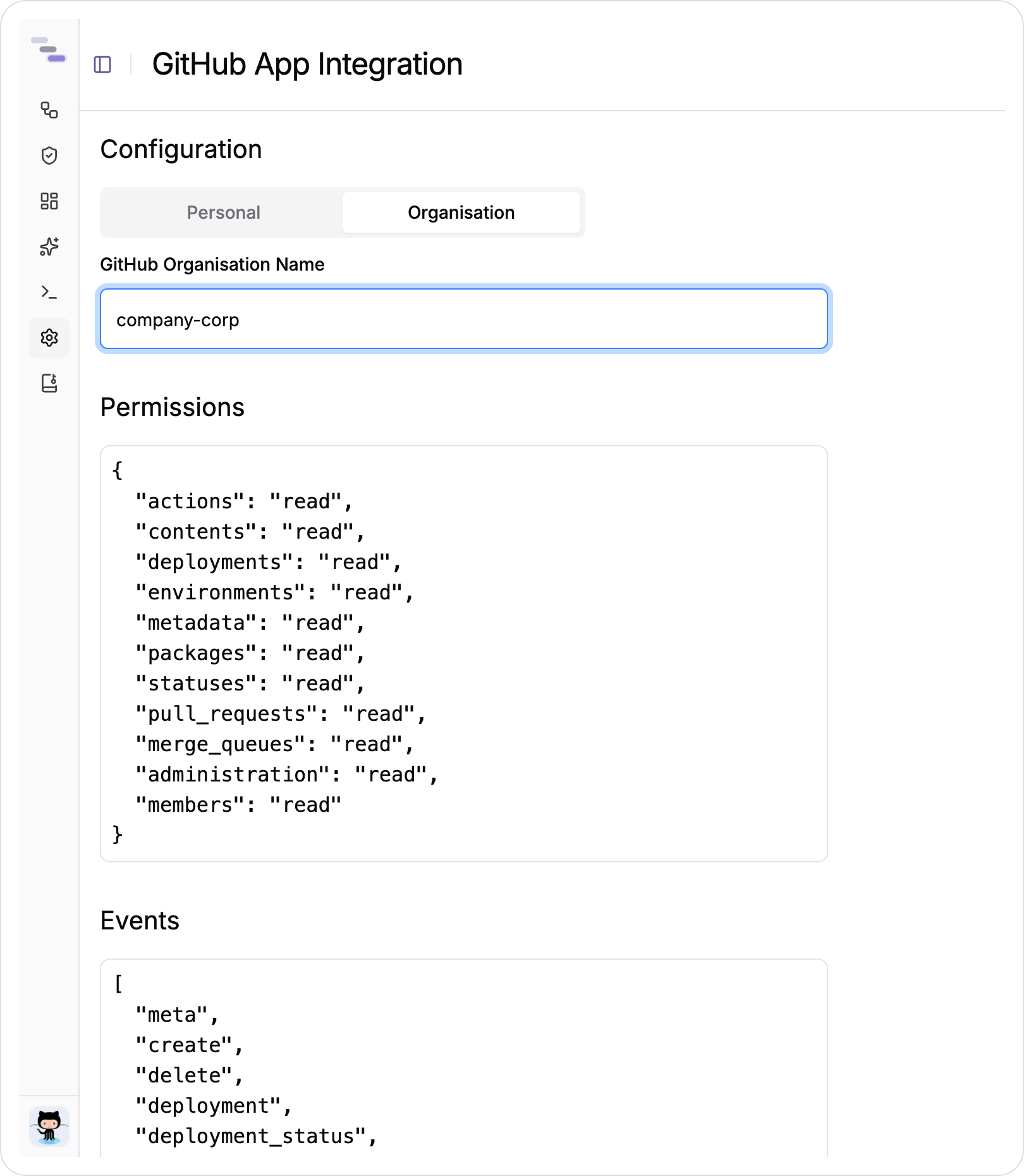
Step 2. Integration Details
Choose an organization or personal installation to match your GitHub account type, enter the required details and select Create GitHub App.
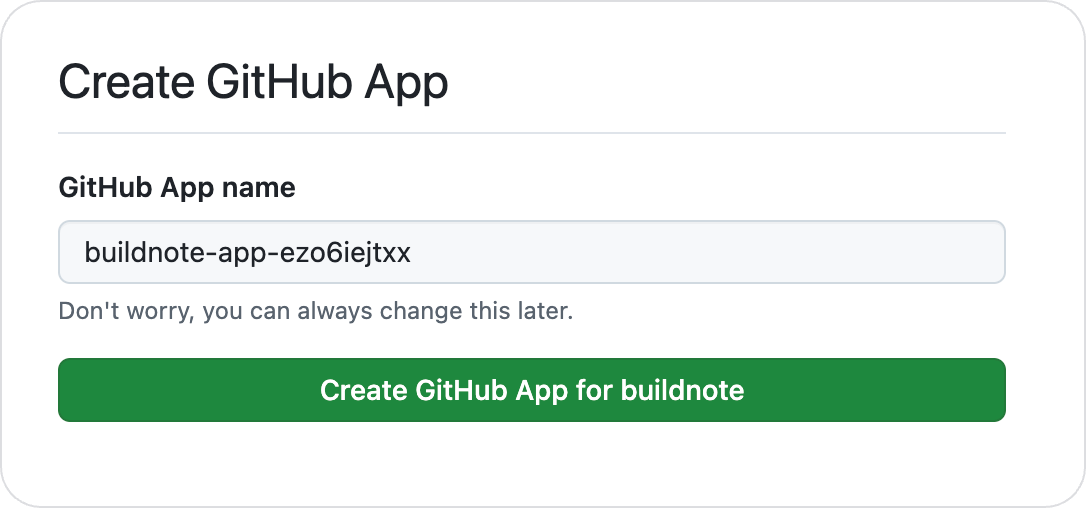
Step 3. App Creation
Buildnote takes you to GitHub, which may ask you to sign in first. GitHub then shows the new app's name, along with the permissions and events that the app manifest requests. Press Create GitHub App to create it in your account.
Step 4. App Installation
Once the app is created, GitHub prompts you to install it. Choose All repositories, or Only select repositories to limit access to the ones you pick, and press Install.
Step 5. Integration Connected
When the installation is complete, GitHub sends you back to Buildnote.
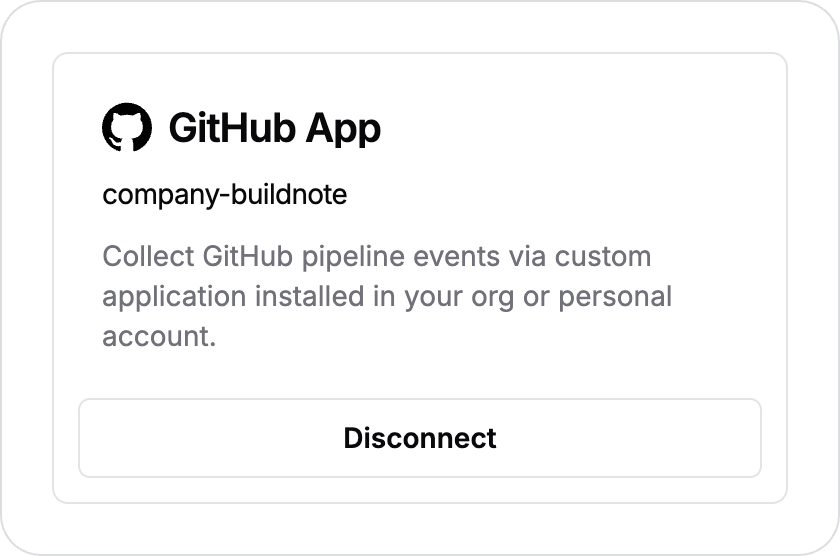
The GitHub App integration is now set up and ready to receive events.
GitHub Webhook
If you don't have permission to create an app in your organization, you can still connect Buildnote by configuring a webhook on a repository. The webhook sends pipeline events to Buildnote when your organization's restrictions prevent you from installing an app.
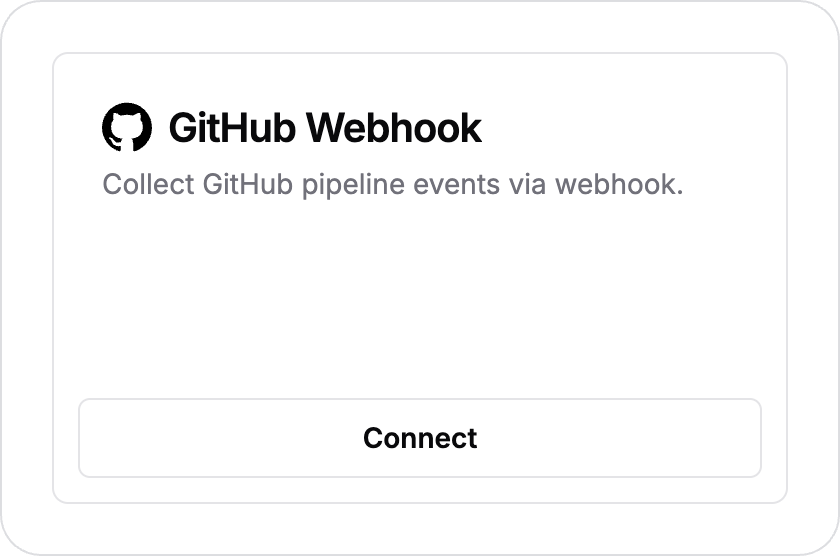
Step 1. Connect GitHub Webhook Integration
In Buildnote, go to Settings > Integrations and connect GitHub Webhook.
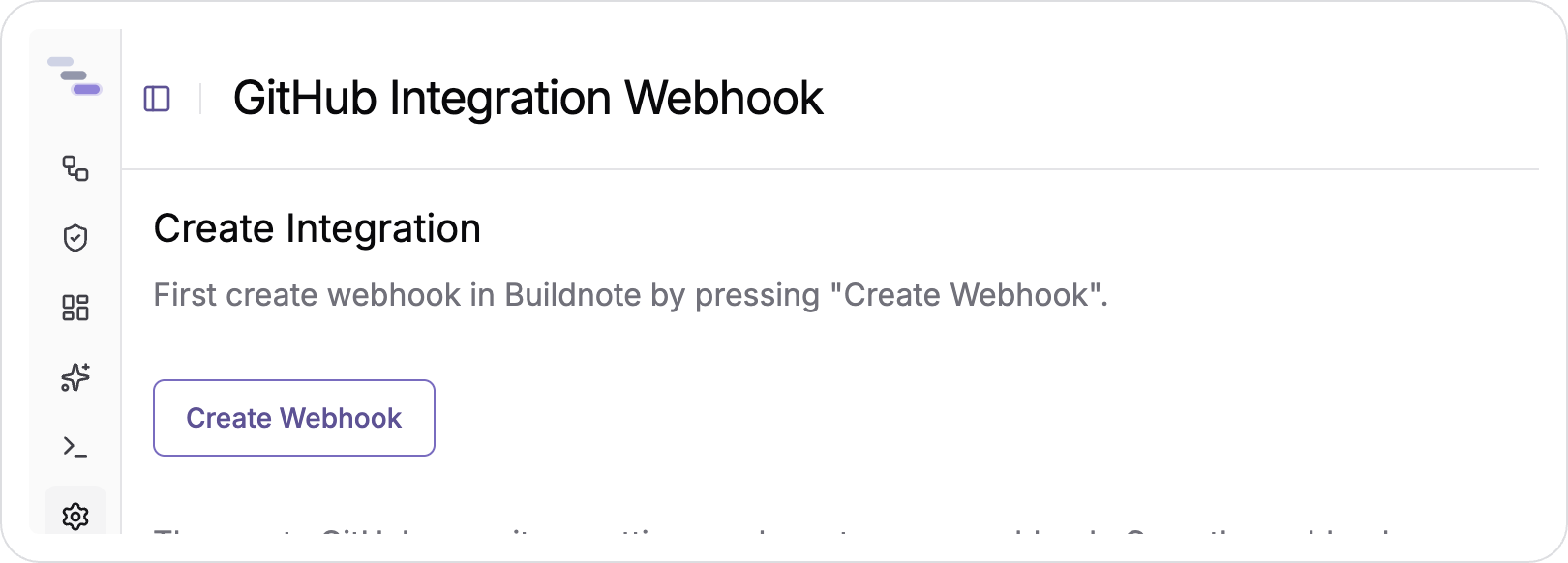
Step 2. Create Webhook
First, create the webhook in Buildnote by pressing Create Webhook.
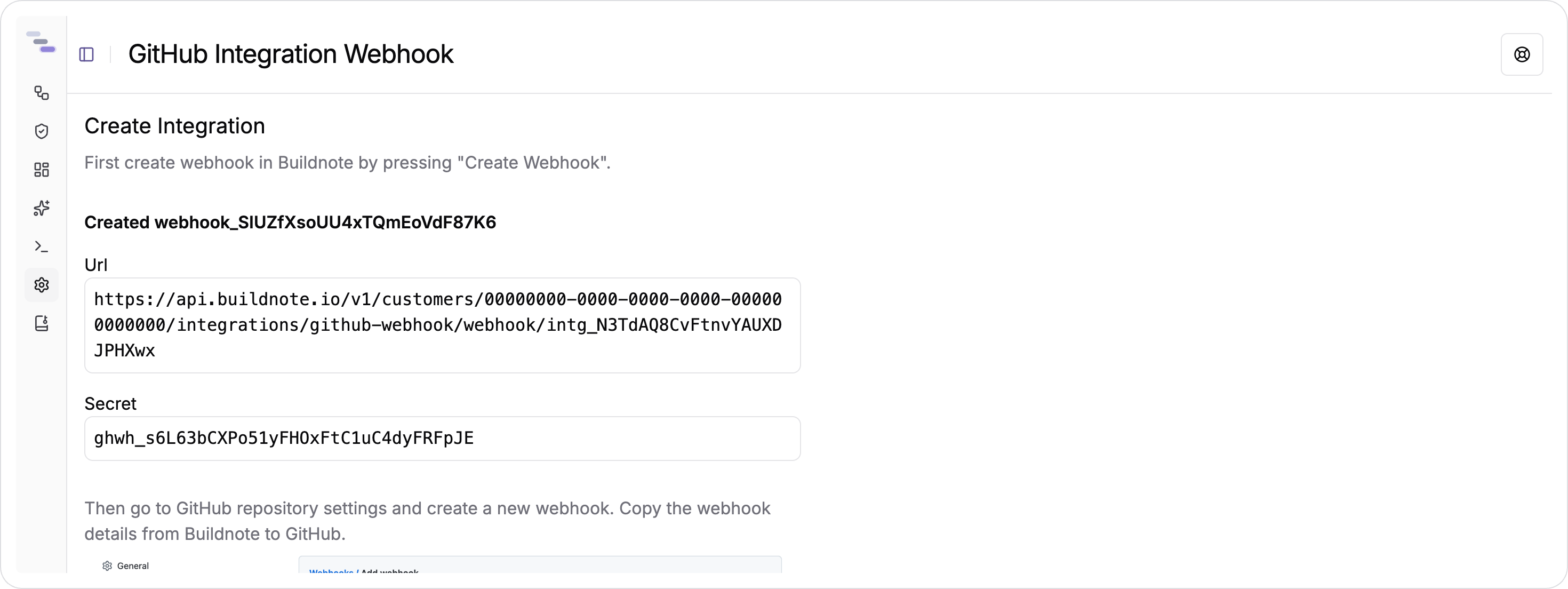
IMPORTANT
Buildnote shows the webhook details only once, right after you create the webhook. Note them down or keep the page open.
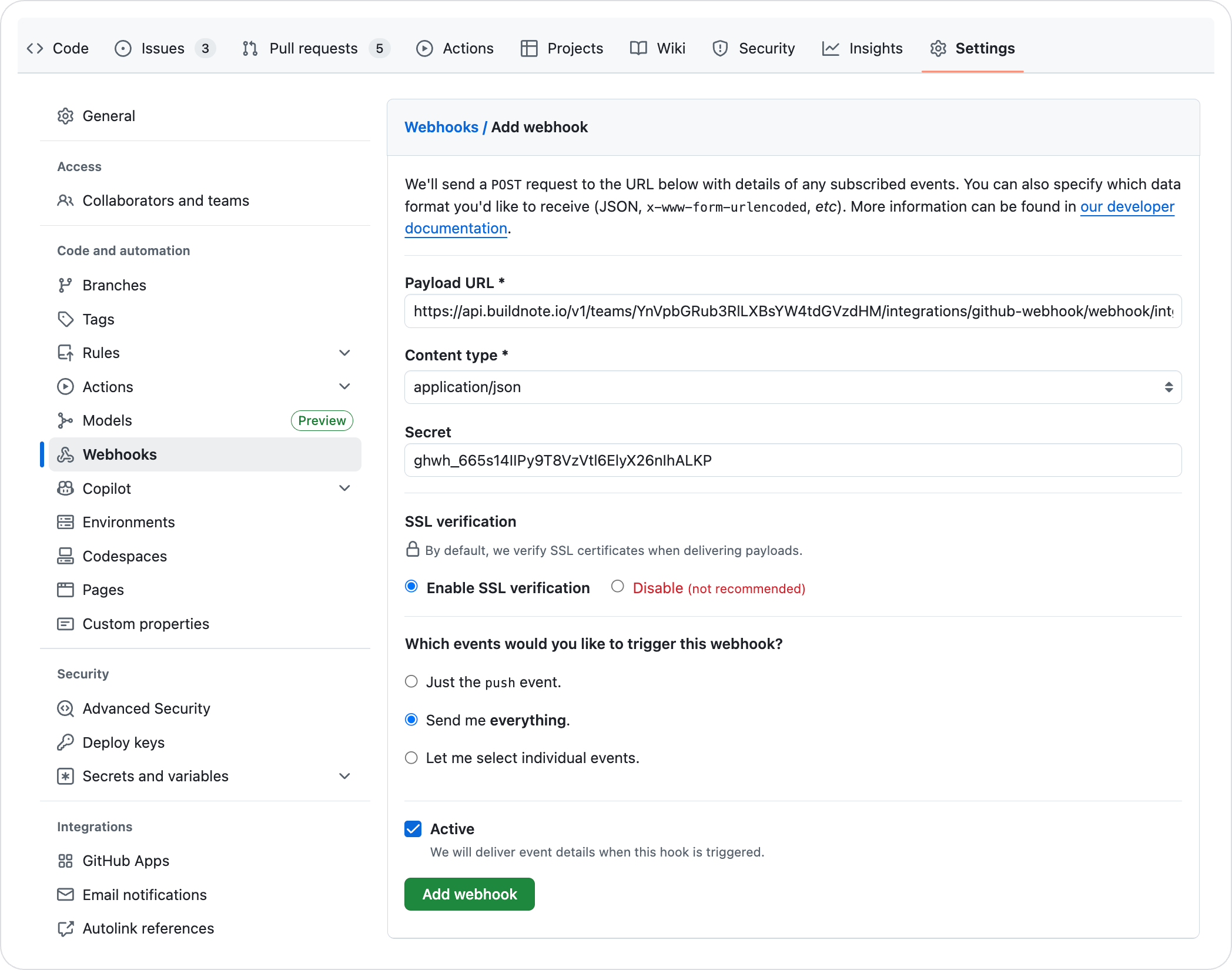
Step 3. GitHub Webhook Configuration
In your GitHub repository, go to Settings > Webhooks and press Add webhook. Paste the Payload URL and Secret that Buildnote showed you into the matching fields.
Set the content type to application/json and check Enable SSL verification. For the best results, select Send me everything under the event triggers.
Step 4. Verify GitHub Webhook
GitHub checks that your webhook is valid and can receive events.
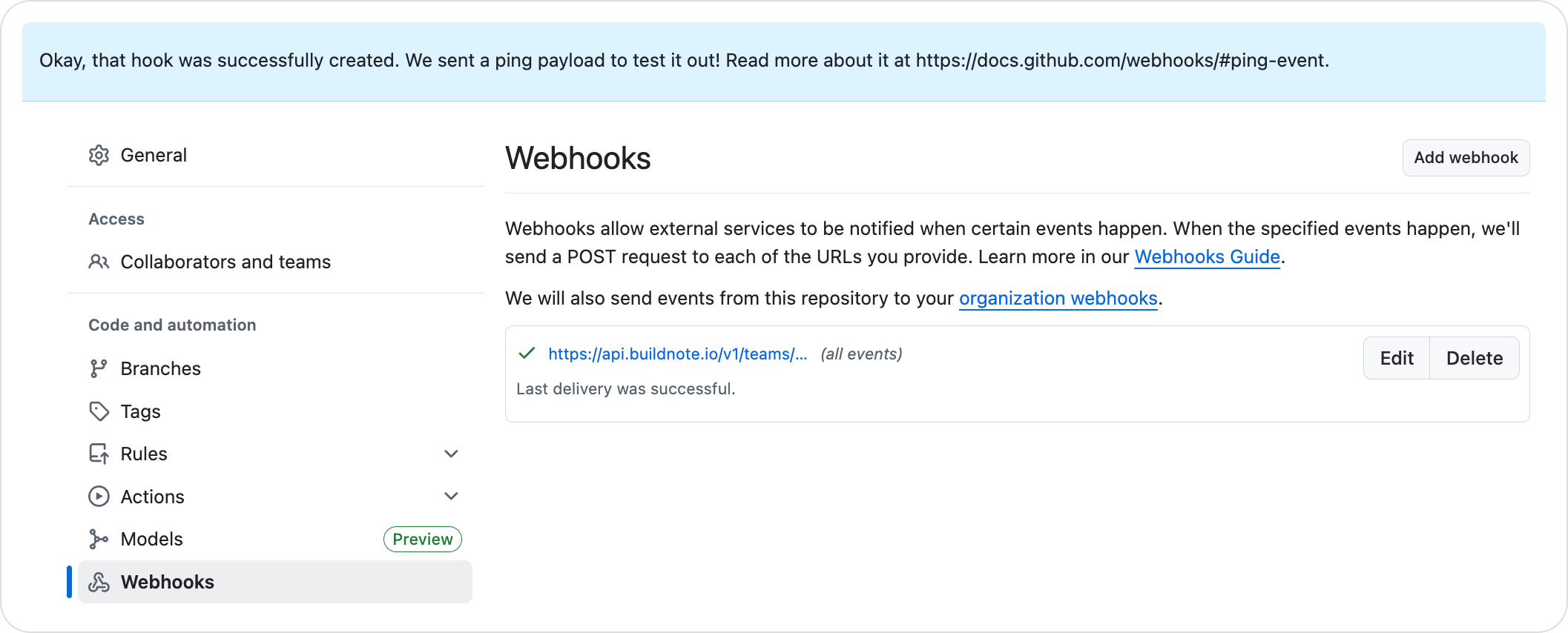
Step 5. Integration Connected
When the webhook is set up, the new integration appears in Buildnote under Settings > Integrations.
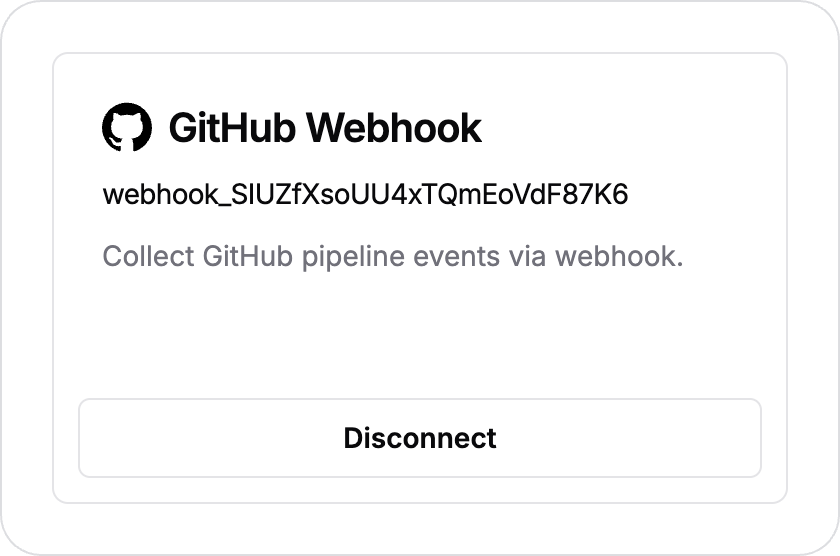
The GitHub Webhook integration is now connected and ready to receive events.
GitHub Action
The Buildnote GitHub Action wraps the core CLI commands so you can use them directly in your workflows.
Basic Usage
Add the action to your workflow file. It needs very little configuration. Store BUILDNOTE_API_KEY in your repository secrets, and set BUILDNOTE_GITHUB_JOB_NAME to your job name or ID so events are linked to the right job.
name: Example workflow using Buildnote
on:
  push:
    branches:
      - main
jobs:
  example:
    name: Example
    runs-on: ubuntu-latest
    steps:
      - name: Collect events
        uses: buildnote/action@0.2.10
        with:
          command: 'collect'   # (1)
        env:
          BUILDNOTE_GITHUB_JOB_NAME: Example  # (2)
          BUILDNOTE_API_KEY: ${{ secrets.BUILDNOTE_API_KEY }}   # (3)
if: always()- The command the action runs (defaults to
collect) - Must match the job name, or the job ID if the job has no name in the workflow file
- The API key used to upload collected events. GitHub account administrators can regenerate this key from the Security tab in team settings
Install Only Mode
If your workflow needs to call the CLI directly, run the action in installOnly mode. The action then only installs the CLI and skips automatic collection, and you call CLI commands yourself in later steps.
name: Example workflow installing and using CLI directly
on:
  push:
    branches:
      - main

jobs:
  example:
    name: Example
    runs-on: ubuntu-latest
    env:
      BUILDNOTE_GITHUB_JOB_NAME: Example
      BUILDNOTE_API_KEY: ${{ secrets.BUILDNOTE_API_KEY }}
    steps:
      - name: Install CLI
        uses: buildnote/action@0.2.10
        with:
          installOnly: 'true' # (1)

      - name: Trace commands  # (2)
run: buildnote trace --name="trace a command" -- sleep 2- Installs the CLI without collecting events
- Runs CLI commands in separate steps