

GitLab Integration
Buildnote connects to GitLab through a webhook. You can also call the Buildnote CLI in your pipelines to collect more events.
GitLab Webhook
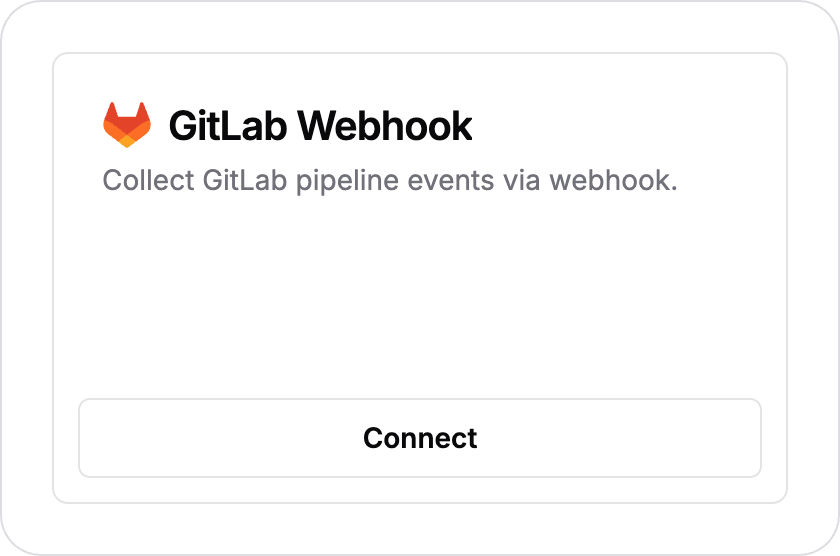
Step 1. Connect GitLab Webhook Integration
In Buildnote, go to Settings > Integrations and connect GitLab Webhook.
Step 2. Create Webhook
Create the webhook in Buildnote by pressing Create Webhook.
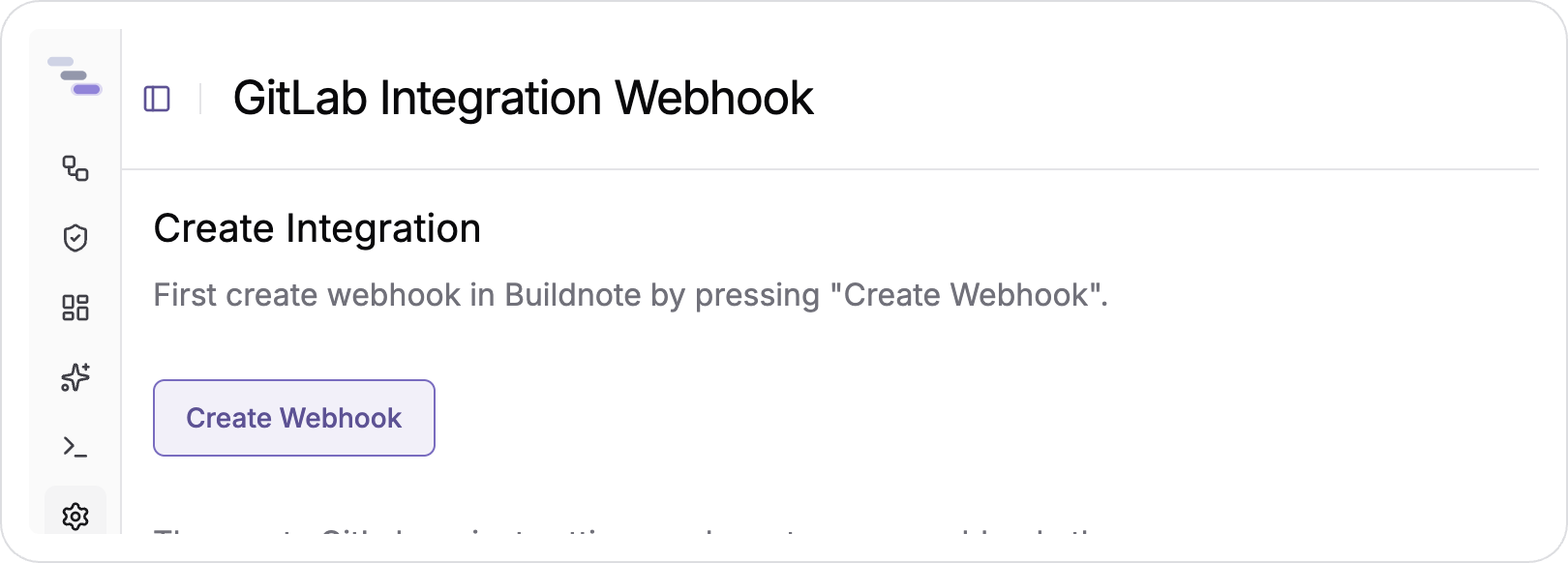
IMPORTANT
Buildnote shows the webhook details only once, right after you create the webhook. Note them down or keep the page open.
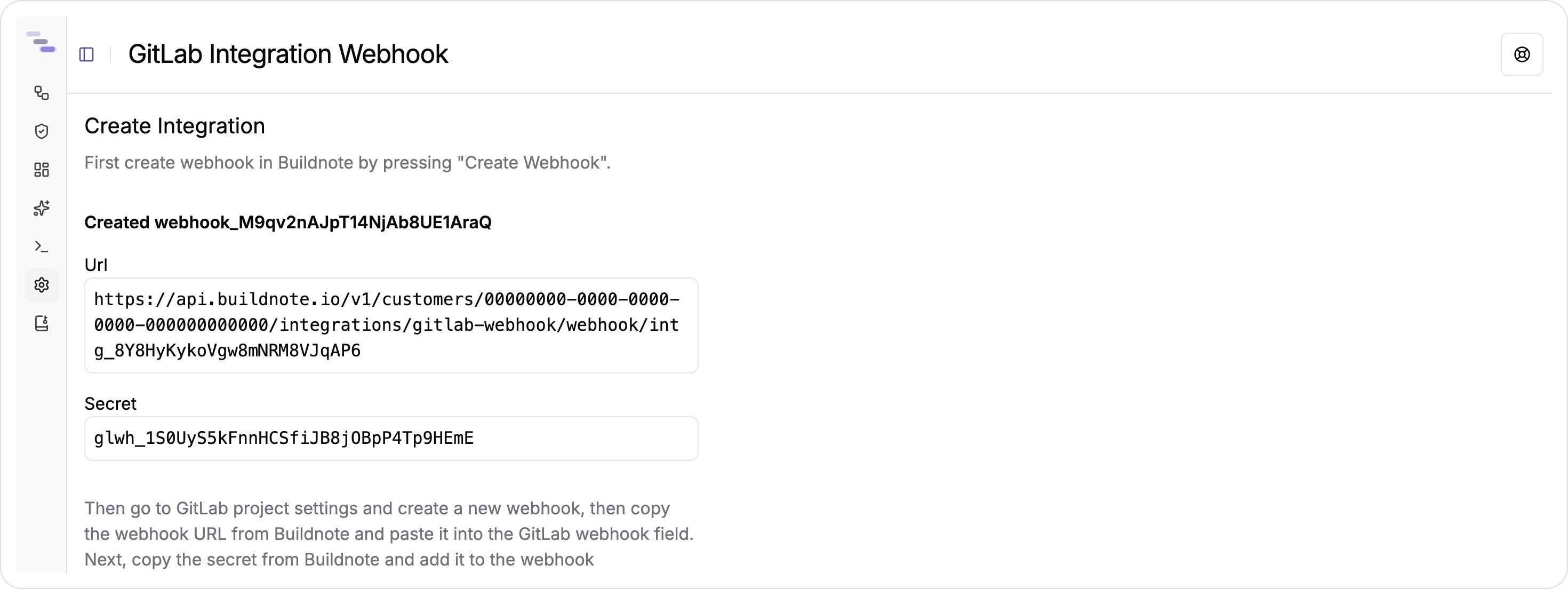
Step 3. GitLab Webhook Configuration
In GitLab, go to Project > Settings > Webhooks and press Add new webhook.
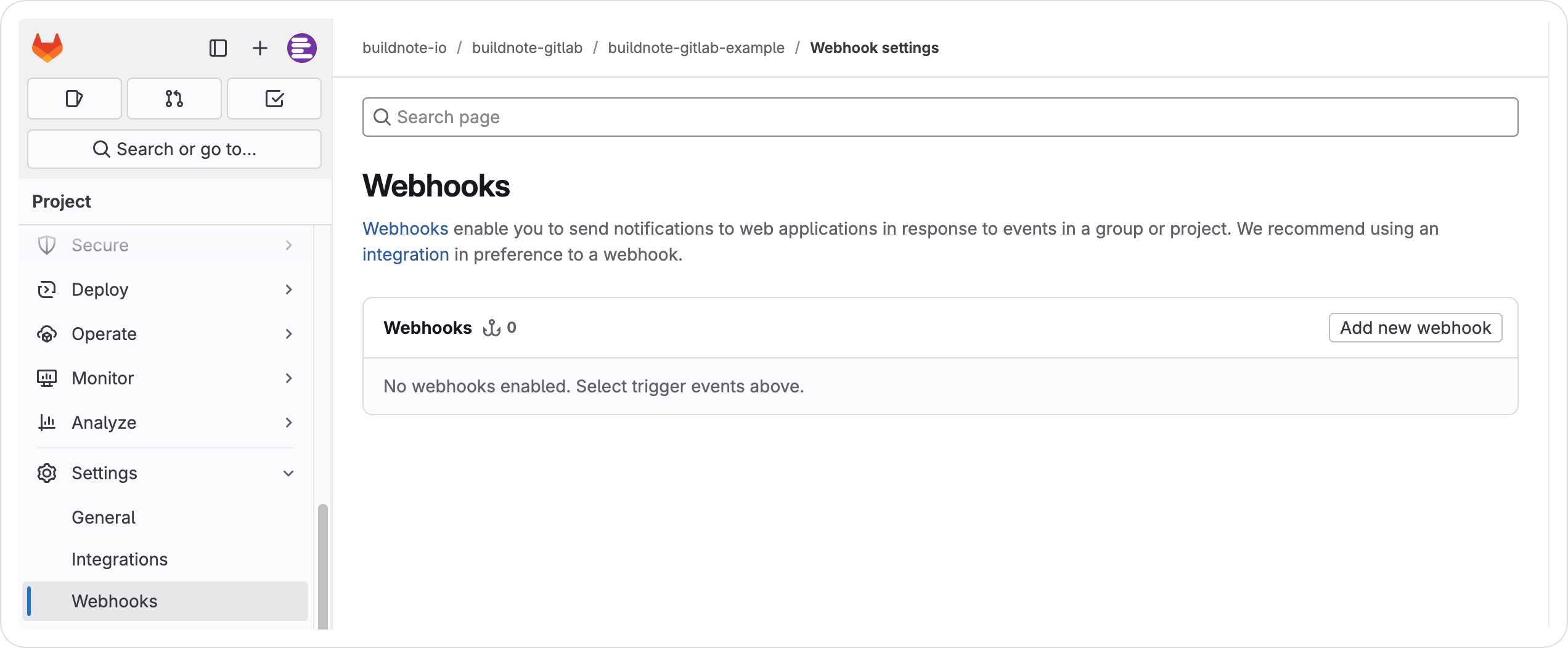
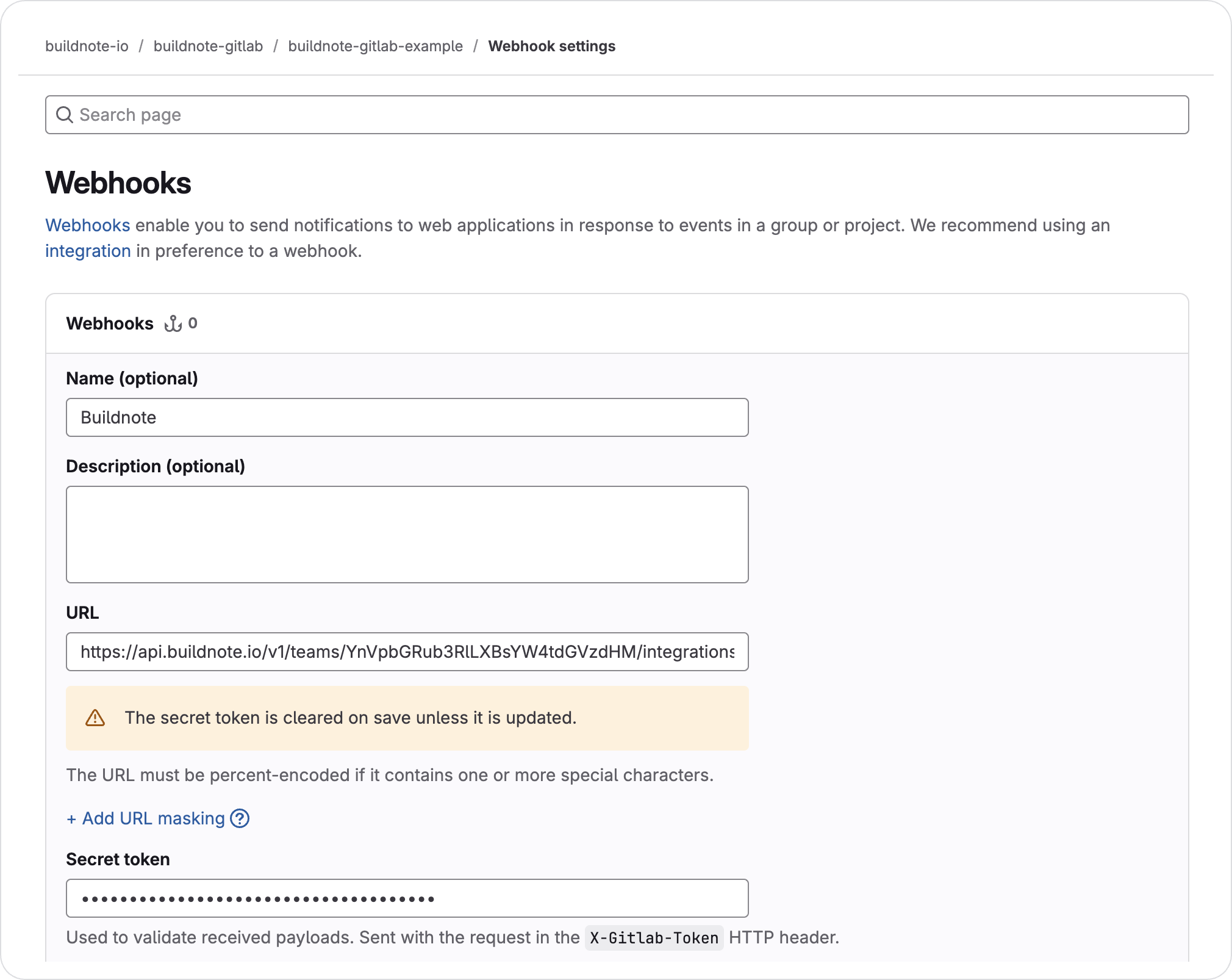
Paste the URL and Secret token that Buildnote showed you into the matching fields.
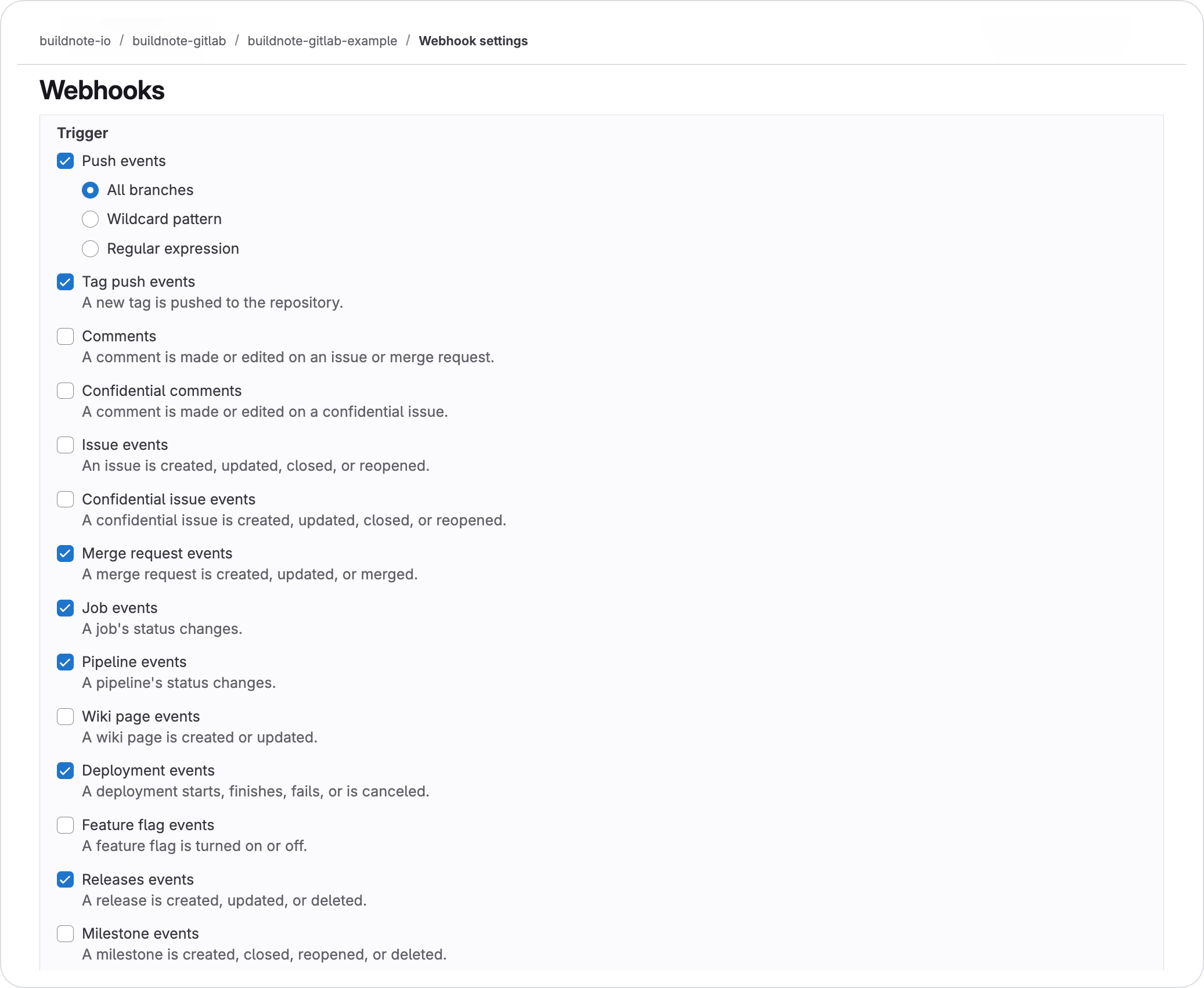
Select these triggers: push events, tag push events, merge requests, job events, pipeline events, deployment events and release events.
Step 4. Verify GitLab Webhook
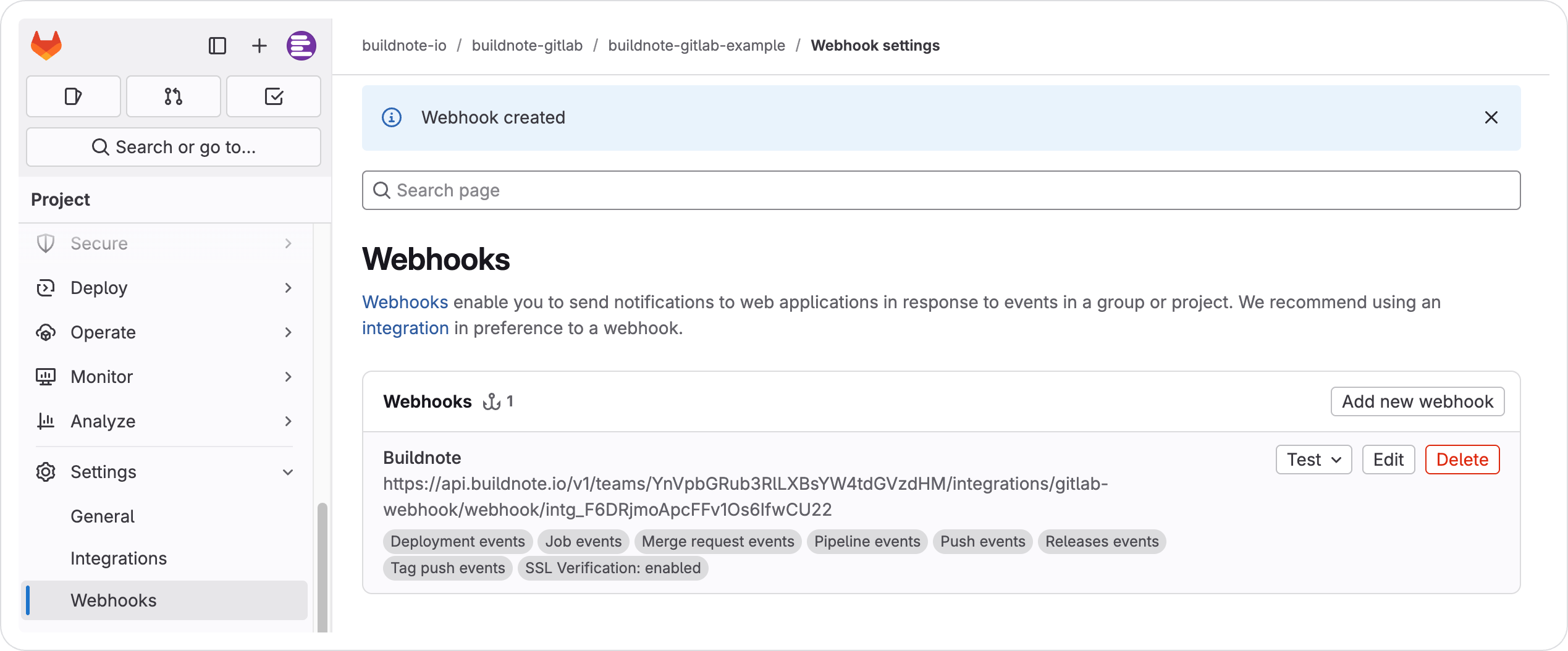
After you save, the webhook appears under Project hooks on the same settings page. Use its Test dropdown to send a sample event and confirm that GitLab can reach Buildnote.
Step 5. Integration Connected
When the webhook is set up, the new integration appears in Buildnote under Settings > Integrations.
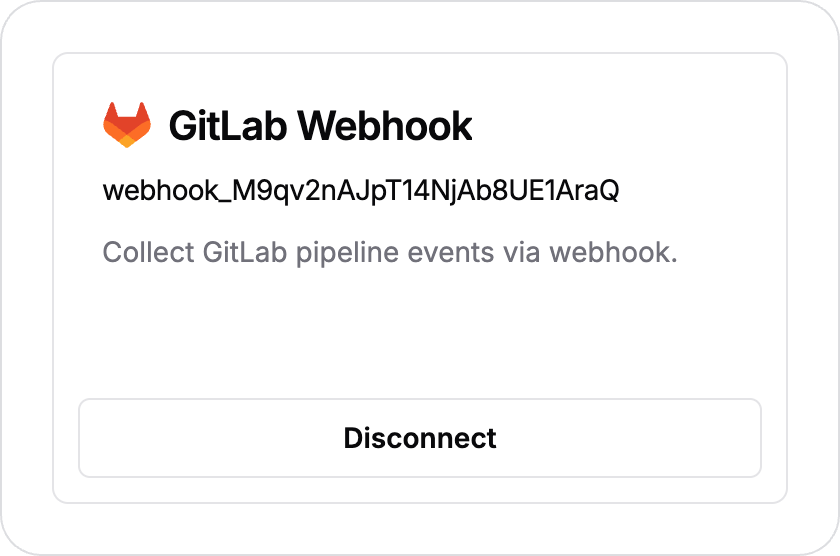
The GitLab Webhook integration is now connected and ready to receive events.
Calling Buildnote CLI In GitLab Pipelines
You can collect more events, such as test results or files, from within your GitLab pipelines.
Here's an example setup:
scripts/setup.sh:
#!/bin/bash

set -e -x

curl -fsSL https://get.buildnote.io | bash
export PATH=$PATH:$HOME/.buildnotescripts/collect.sh:
#!/bin/bash

set -e -x

export PATH=$PATH:$HOME/.buildnote

buildnote collectBasic Pipeline Integration
stages:
  - build
  - test

variables:
  BUILDNOTE_API_KEY: $BUILDNOTE_API_KEY

build_with_scripts:
  stage: build
  before_script:
    - chmod +x ./scripts/*.sh
    - ./scripts/setup.sh
  script:
- ./scripts/collect.shEnvironment Variables
| Variable | Description | Required |
|---|---|---|
BUILDNOTE_API_KEY | API key for uploading events to Buildnote | Yes |